How to Fix a Suspended Merchant Center Account, Step by Step
A Merchant Center suspension takes your Shopping and Performance Max ads offline within hours. Here is the diagnostic sequence we follow to find the real policy…
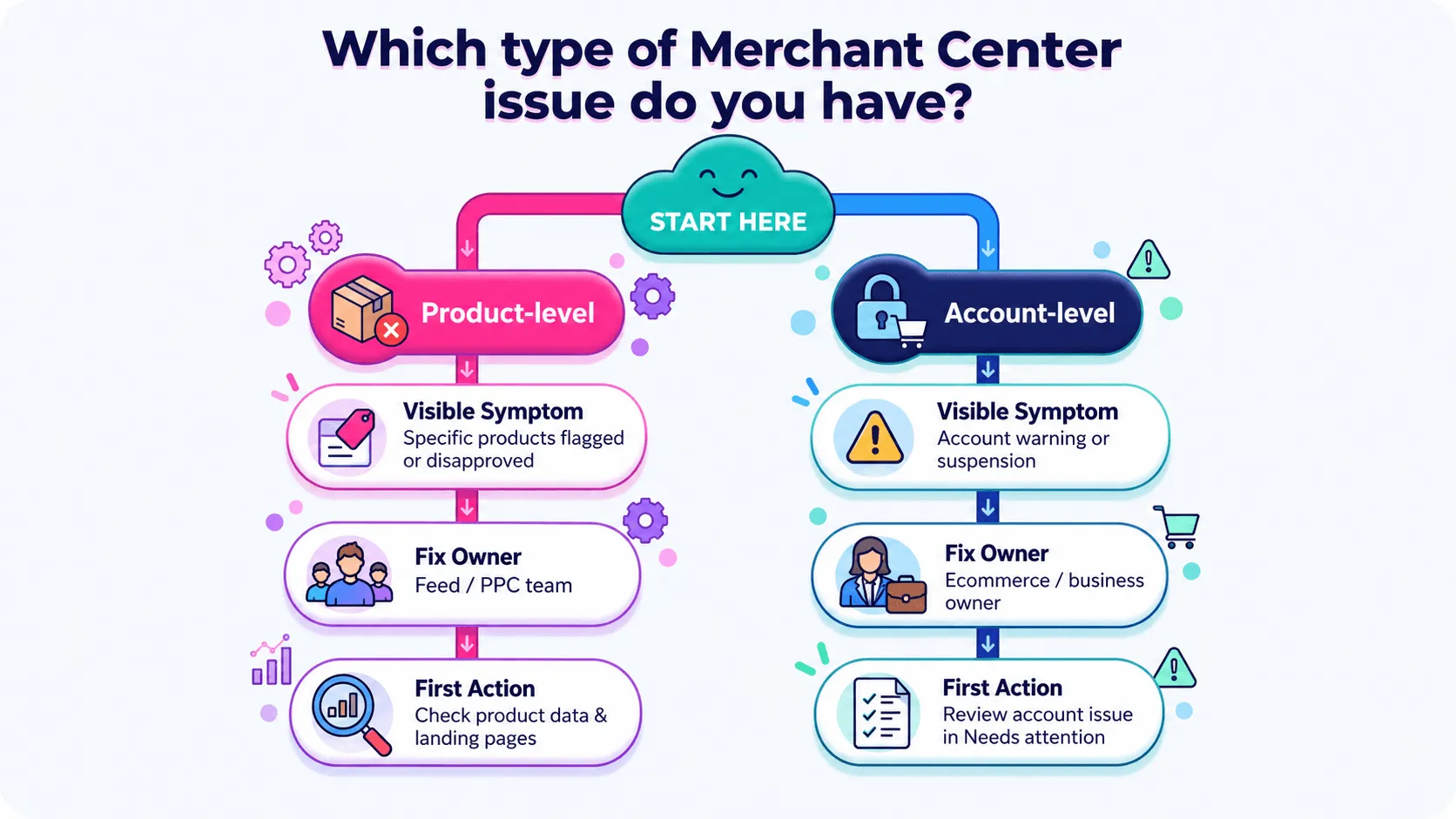
If you run a Shopify store between $1M and $20M and your Shopping traffic went to zero this morning, you are in the right place. The first thing to establish is whether you are dealing with a product-level issue or an account-level issue, because the fix and the review process are different.
What follows is the order to actually work in when a client account gets flagged: identify the scope of the enforcement, read the issue inside Merchant Center rather than relying only on the email, fix the root cause, then request a review where one is required.
Why Your Merchant Center Account Got Suspended
The notification you receive will usually identify the issue or policy category, but it may not tell you the exact product field, page element, or site-wide inconsistency that caused it. The useful diagnosis happens inside Merchant Center, where you can see whether Google is flagging individual products or the account as a whole.
What matters first is the scope of the enforcement. Google Merchant Center distinguishes between product-level issues, where specific items may be limited or disapproved, and account-level issues, which can affect all products in the account.
The stakes are wider than the Shopping tab. A Merchant Center suspension prevents Shopping campaigns that depend on those products from serving, and it can severely disrupt Performance Max campaigns that use the same Merchant Center feed. Performance Max can also use other creative assets and channels, however, so a feed suspension does not necessarily mean every part of the campaign stops serving.
The two enforcement scopes: product-level and account-level
Product-level issues look like gaps. Specific SKUs may become disapproved while the rest of the catalogue remains eligible. You might see impressions fall for part of the range while spend continues elsewhere.
Account-level issues are broader. Google may first issue a warning and give you a period to correct the problem. If the issue remains unresolved, the account can be suspended and the affected products stop appearing across Google. For serious violations, Google may suspend an account without a warning period.
Site-wide problems such as misleading business information, inconsistent pricing, or policy violations across multiple products can therefore have account-wide consequences. The important distinction is not whether Google has “flagged the domain” as a separate enforcement type, but whether the underlying problem exists across the website or account and will continue to be detected until it is corrected.
Match the symptom to the enforcement scope before you start changing the feed or website.
Step 1: Find The Real Reason In The Needs Attention Page
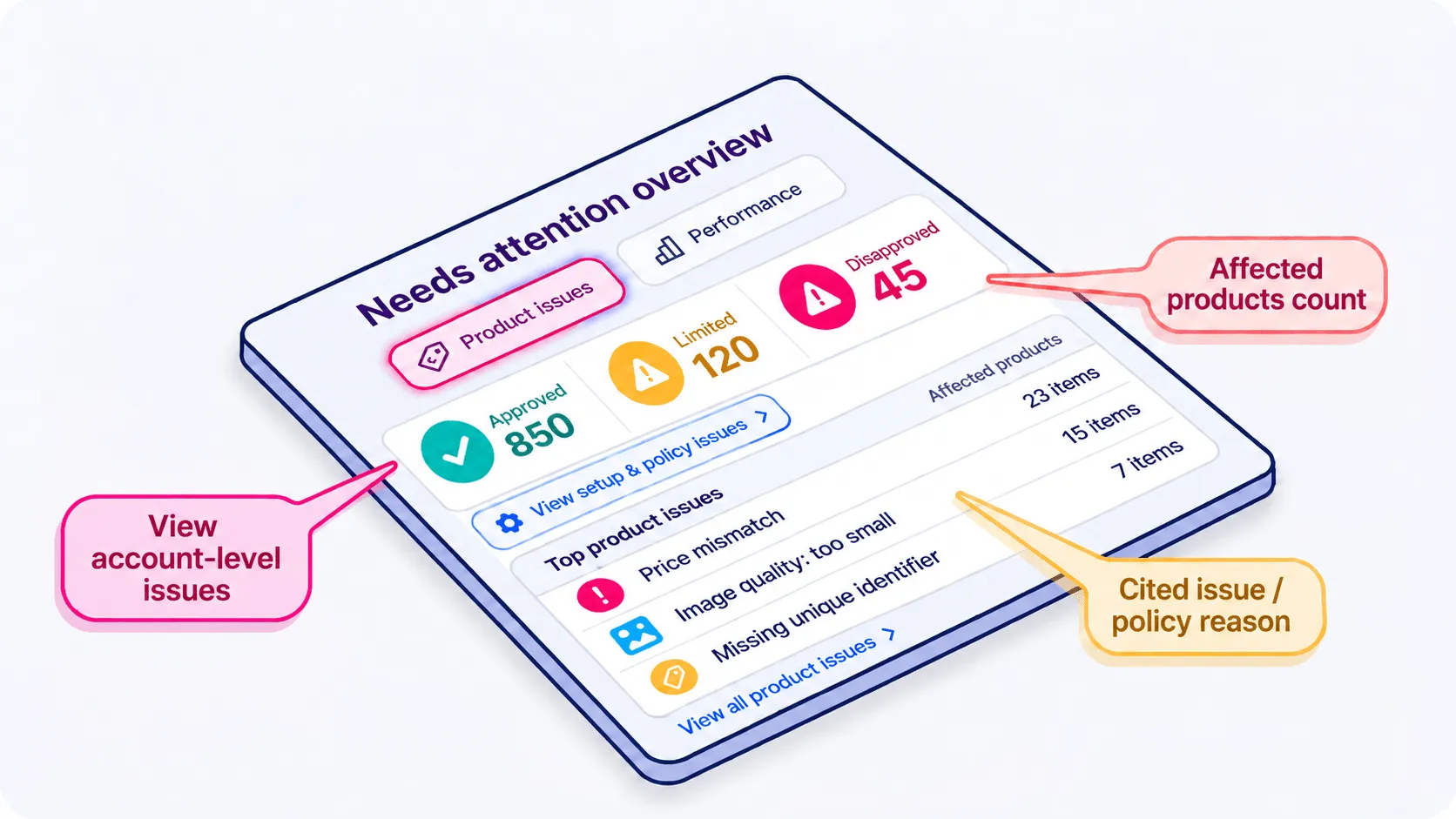
Open Merchant Center and go to Products → Needs attention. If you have used Merchant Center for a while, you may know this section by its previous name, Diagnostics.
Product-level issues appear in the Needs attention product table, where you can see which items are affected and the issue attached to them.
For account-level problems, Merchant Center shows an alert or banner at account level. From the Needs attention page, select View setup and policy issues to see the relevant account-level enforcement and follow the resolution flow.
Not every issue in this area means the account is suspended. Merchant Center can surface warnings, recommendations, product disapprovals and account-level policy problems in the same general workflow. Check the status and scope before assuming every red item is blocking the entire account.
One habit I would recommend to anyone managing this in house: screenshot the issue the moment the account gets flagged, with the date visible. Statuses and affected-product counts can change as Google processes new feed data or re-checks the site, and keeping a record makes the resolution process much easier to reconstruct later.
How to read the policy violation report without misinterpreting it
The affected-products count and the scope of the issue are two separate signals.
Twelve products with a missing GTIN is normally a product-data problem affecting those items. An account-level Misrepresentation issue, on the other hand, can affect the eligibility of the whole account even if Google only surfaces a limited number of examples.
Do not use the sample product count as a proxy for severity. Read the policy category and confirm whether Merchant Center is treating it as a product-level or account-level issue.
The second thing to internalize is the lag. Updating a feed field or changing a page does not guarantee that Merchant Center will reflect the correction immediately. Some product changes are automatically re-reviewed after new data is submitted, while other issues require you to request a review. Give Google enough time to process the updated data before assuming that a live fix has failed.
The Most Common Policy Violations We See On DTC Shopify Stores
Across the Merchant Center accounts we manage, the same causes come back with almost boring regularity. These are not hypotheticals from a policy document; they are repeat offenders we see on Shopify stores. If you want the underlying setup logic, our guide on how Google Merchant Center works with Shopify covers how the connection is supposed to behave when everything is healthy.
Misrepresentation: missing business info and unclear return policies
One of the most common problems we see is business information that does not line up across the store and Merchant Center.
Your legal business name and contact details should be clear on the website and consistent with the information held in Merchant Center. Rebrands, new legal entities and checkout changes can create discrepancies that nobody notices until Google reviews the account.
Return and refund policies are another common weak point. Google’s misrepresentation policy expects merchants to be transparent about their business and the conditions attached to a purchase. Your return and refund information should be easy to find and clearly explain how customers can return an order and receive a refund.
A vague “contact us for returns” page leaves too much unanswered. Fashion brands with final-sale products also need to make exclusions and purchasing conditions clear rather than hiding the exception in individual product copy.
Prohibited content and edited images
For beauty and wellness brands, both imagery and product claims deserve close attention.
The safest distinction is between accurately presenting the product and using creative or copy to imply a result that is misleading, unrealistic or unsupported. Claims such as “clears acne in 7 days” are considerably riskier than factual descriptions of ingredients, formulation, texture or intended cosmetic use.
Do not assume that an image is automatically the source of a policy issue simply because the product uses strong beauty creative. Google can evaluate information from the product data, website and other account signals, so the problematic element may instead be a title, description, landing-page claim or broader product category restriction.
At the same time, Merchant Center has specific image rules. Your primary product image must accurately represent the product and cannot contain promotional overlays such as calls to action, prices, retailer logos or watermarks that are not inherent to the product.
Check the exact issue first. If Google identifies an exaggerated or misleading claim, correct the relevant product copy or landing page. If Merchant Center identifies an image-specific problem such as a promotional overlay, generic image or incorrect product image, update the image itself.
Feed and data quality issues
The mechanical category covers price mismatches between the product data and landing page, checkout-price inconsistencies, currency problems on multi-market stores, missing or incorrect product identifiers, and landing pages that are unavailable or redirect excessively.
Price mismatches are especially common when a sale starts or ends on the website before the product data updates, or when structured data, the landing page and the feed report different prices.
A promotion applied in the cart or at checkout is not automatically a policy problem. Google supports qualifying promotions at checkout. The problem is when the price Google expects from your product data, landing page and checkout does not comply with the applicable pricing requirements, or when unexpected mandatory charges increase the purchase price later in the journey.
Landing-page URLs also need to work reliably. A redirect is not automatically invalid, but Google flags landing pages that redirect too many times and currently recommends no more than two redirects.
Google’s product data specification is the reference to check field by field. For many item-level data issues, updating the product data triggers an automatic re-review rather than requiring a separate account appeal.
How long does it take to get reinstated on Google Merchant Center?
There is no reliable Google-published reinstatement average for each policy category, so be careful with anyone promising a fixed 24-hour, three-day or seven-day recovery window.
Some item-level data changes are automatically processed after Google receives the corrected product information or re-crawls the relevant page. When a formal Merchant Center review is required, Google says the review can take up to 7 business days in the standard review flow.
The more useful distinction is whether the issue requires an automatic product re-review, a requested account review, or whether the account has entered a cooldown after unsuccessful review attempts.
Issue type
Typical next step
Google-documented review behaviour
Who usually fixes it
Product data quality
Correct the feed or product data
Updated products may be automatically re-reviewed
Feed owner or PPC team
Landing-page or price inconsistency
Correct the site/feed mismatch and allow Google to process the change
May involve a new crawl or requested review depending on the issue
Ecommerce or feed team
Product policy disapproval
Fix the violating product, copy or image
Review may be automatic after an update or available through Request review
PPC, copy or creative team
Account-level warning or suspension
Fix the issue across the account/site and request review where available
Standard reviews may take up to 7 business days
Ecommerce team plus PPC
Repeated unsuccessful account reviews
Continue correcting the underlying problem and wait for the review option to reopen
A cooldown may apply and can become longer after further unsuccessful reviews
Site, feed and PPC teams
Step 2: Fix The Root Cause Before You Touch The Review Button
Google reviews the current state of your product data, account and website. If the violation is still live, requesting another review does not solve the underlying problem.
There is also a practical reason not to burn review attempts. After unsuccessful reviews, Merchant Center can place the account into a cooldown period, during which the review button is disabled. Google states that subsequent unsuccessful reviews may lead to longer cooldown periods, and support cannot bypass or shorten that cooldown.
Fix first, verify that the correction is live, then use the review flow Merchant Center gives you.
Feed-level fixes
Start by cross-checking submitted prices against the live product pages for the flagged SKUs. Check the regular price, sale price, currency, availability and any structured data used on the landing page.
For multi-market stores, confirm that the product data targets the correct country and currency and sends the user to a landing page that displays the corresponding offer.
Add product identifiers such as GTINs only when they genuinely exist for the product rather than inventing or guessing them.
Validate the changes before you resubmit. A Google Sheets export of corrected rows, your feed-management platform’s validation tools, or a direct comparison between Merchant Center and Shopify will often catch a bad field faster than waiting for the next Google check.
Site-level fixes
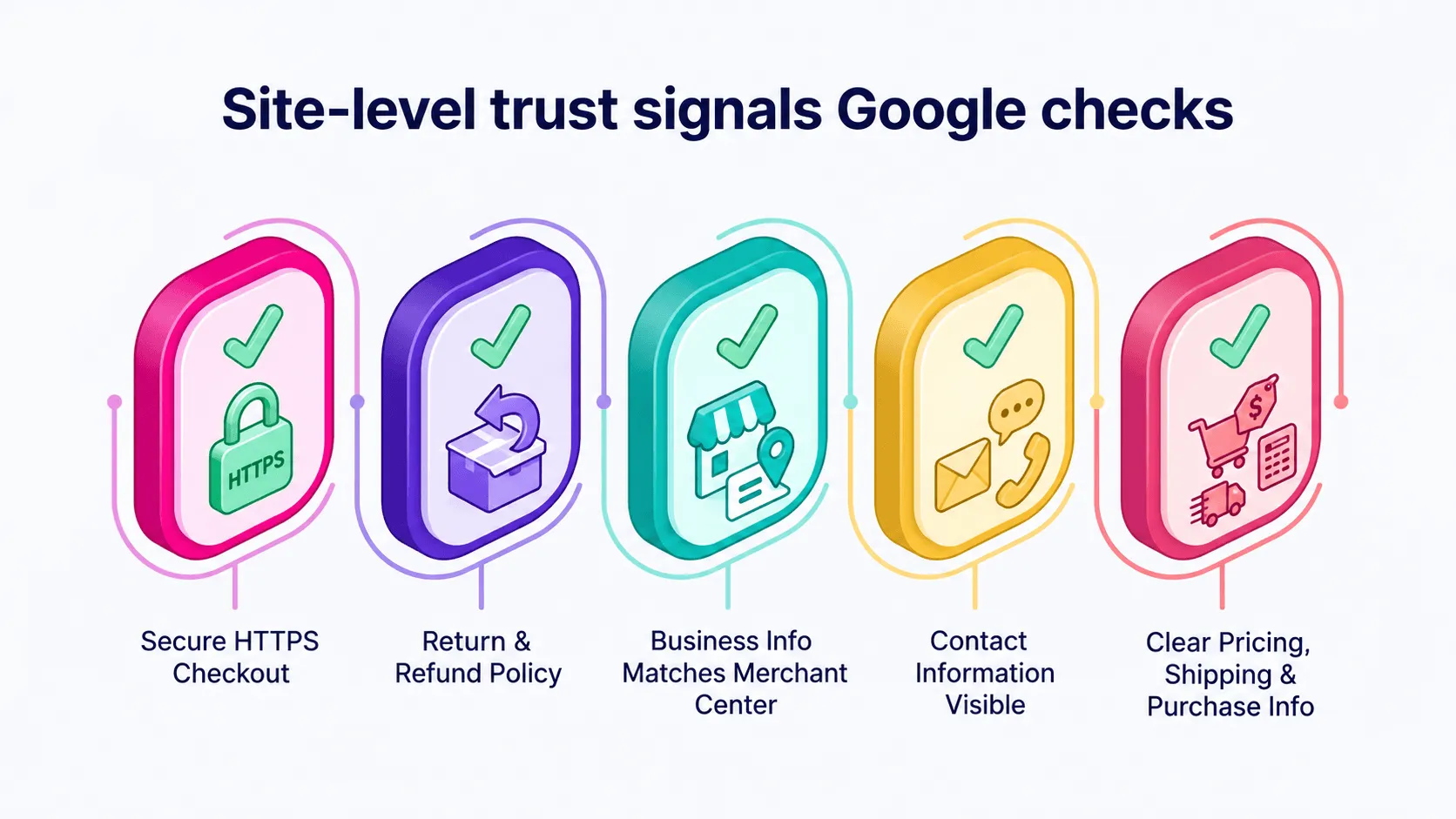
The website side is worth checking as a full trust and functionality audit, particularly when the issue is account-level:
Make sure the checkout works correctly and is secured with HTTPS
Make your legal business name and contact information clear and consistent with Merchant Center
Link clearly to shipping, return/refund and privacy policies
Make the conditions attached to purchasing, shipping and returns easy to understand
Remove broken links, placeholder content and unfinished site elements
Make sure product prices, availability and material charges are accurately represented throughout the purchase journey
Handle tax information according to the requirements of the countries you target
If several of these are missing, the gap probably dates back to launch. Our Merchant Center account setup guide walks through the foundational fields most stores skip in the rush to get Shopping live.
I treat this as a recurring check rather than a one-time cleanup, because trust signals drift. A store changes its legal entity, moves customer support details, changes checkout functionality or launches into another market, and information that was once consistent no longer is.
Step 3: How To Request A Review Without Wasting The Attempt
Before requesting a review, confirm that the correction is actually live in your feed, website or account.
Keep a dated record of what you changed. Screenshots, affected SKU IDs, URLs and feed values are useful internally and can help if Google asks you to provide additional information during the review or appeal process.
The exact flow depends on the issue.
If you have corrected the problem, Merchant Center may give you an I fixed the issue or Request review option.
If you believe Google’s decision is incorrect, the flow may instead let you select I disagree with the issue. Google may then ask for an explanation or supporting information.
Do not assume every review includes a free-text appeal letter or an attachment field. Follow the options Merchant Center presents for that specific issue and keep your evidence ready if Google requests it.
If you are asked to explain the change, keep the response factual and specific: what the issue was, what you corrected, which products or pages were affected, and when the correction went live.
Common review mistakes that lead to another rejection
The first mistake is requesting a review before the correction is genuinely live. It is fine if Merchant Center itself has not visually refreshed yet, but the updated product data, page or policy must be accessible when Google checks it.
The second is correcting only the example Google surfaced while leaving the same issue elsewhere in the catalogue or website. This matters particularly for account-level policy issues: Google’s examples are not necessarily an exhaustive list of every affected page or product.
The third is repeatedly requesting reviews without making a meaningful additional correction. Merchant Center can apply a cooldown after unsuccessful reviews, during which the review button is disabled. Later unsuccessful reviews may lead to longer cooldown periods.
The fourth is treating every item-level problem as if it needs a manual appeal. For many product-data issues, editing and resubmitting the affected product automatically triggers another review.
How To Prevent Future Suspensions Once You’re Reinstated
Check Products → Needs attention regularly instead of waiting for an email. A recurring review of product issues gives you a chance to catch price inconsistencies, broken landing pages and feed errors while they are still isolated problems.
Pair that with your normal ecommerce monitoring. GA4 and Search Console alerts can help surface sudden changes in Shopping traffic or product-page availability, while your feed platform should be monitored for rejected items and sync failures.
The second habit is information hygiene. Every rebrand, legal-entity update, checkout change or major business-information change should be reflected consistently across your website, Merchant Center settings and relevant Google payment-profile information.
Policy compliance in Merchant Center is often less about one dramatic violation than it is about information slowly drifting out of alignment. Folding a feed and policy review into your regular PPC audit is a cheap way to catch that drift early.
When To Escalate: Google Support Versus A Partner
Google support can be useful when the reason for an issue is unclear, when you need help understanding the review status, or when the interface is not giving you an obvious next step.
What support cannot do is bypass the Merchant Center review process or shorten a cooldown once one has been applied.
A Google Partner can still be useful, but the advantage is primarily experience and access to support resources rather than a guaranteed policy override. Agencies managing multiple accounts tend to recognise recurring feed problems, site patterns and policy changes faster because they see the same issue across several businesses.
The Google Partners programme includes Google Ads support benefits, and some higher-tier partners may receive invitation-only dedicated account support. That should not be confused with a guaranteed route to overturn a Merchant Center suspension or force a manual approval.
The strongest reason to escalate to an experienced partner is therefore diagnosis: working out whether the unresolved problem sits in the product data, website, account setup or policy interpretation before another review attempt is used.
Building A Suspension-resilient Merchant Center Setup
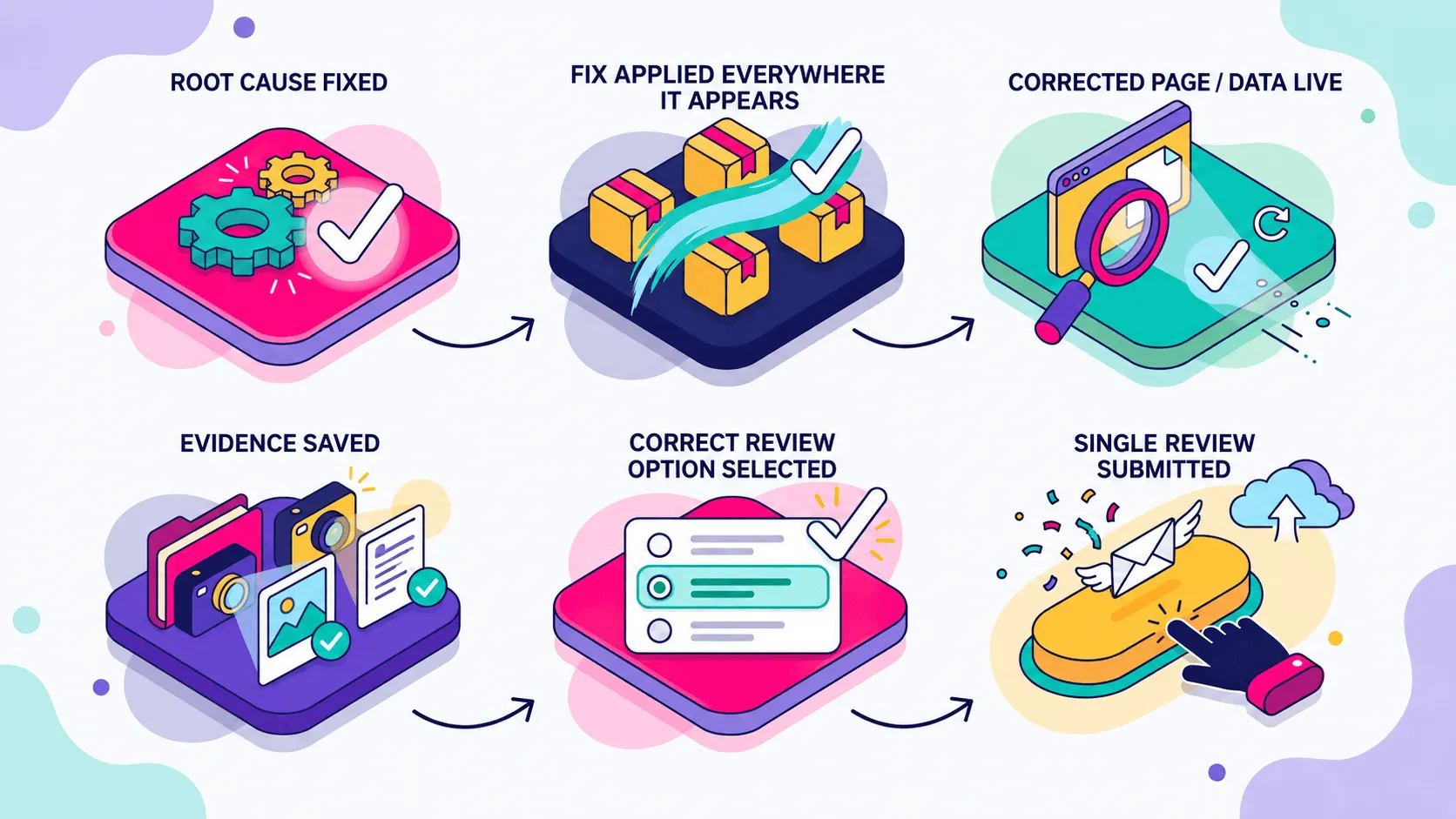
Keep the sequence simple: identify whether the issue is product-level or account-level, read the current issue in Needs attention, correct the root cause everywhere it appears, make sure the correction is live, then follow the review flow Merchant Center gives you.
That order is more reliable than trying random feed edits, deleting creative assets or repeatedly clicking Request review.
Merchant Center enforcement is an operational risk of running Shopping at scale, not something that every store is destined to experience. The stores that recover fastest are usually the ones that keep their product data, website information and account settings consistent before an enforcement issue appears.
Dealing with a suspension right now, or tired of the same flag coming back every quarter? Take a look at our Google Ads for ecommerce services or ask us for an account and feed review.
We’ll find what triggered the enforcement, fix the root cause across your feed and your site, and put a monitoring routine in place so your Shopping campaigns stop going dark without warning.