If you run an eCommerce store and your products are not yet showing up on Google Shopping, this guide is for you. In this step-by-step walkthrough of the Google Merchant Center setup process, I’ll cover account creation, website verification, product feed configuration, and the most common mistakes that get brands disapproved before they even launch their first campaign. Read this once, get it right the first time, and let your products work for you across every Google surface.
What Is Google Merchant Center and Why It Matters
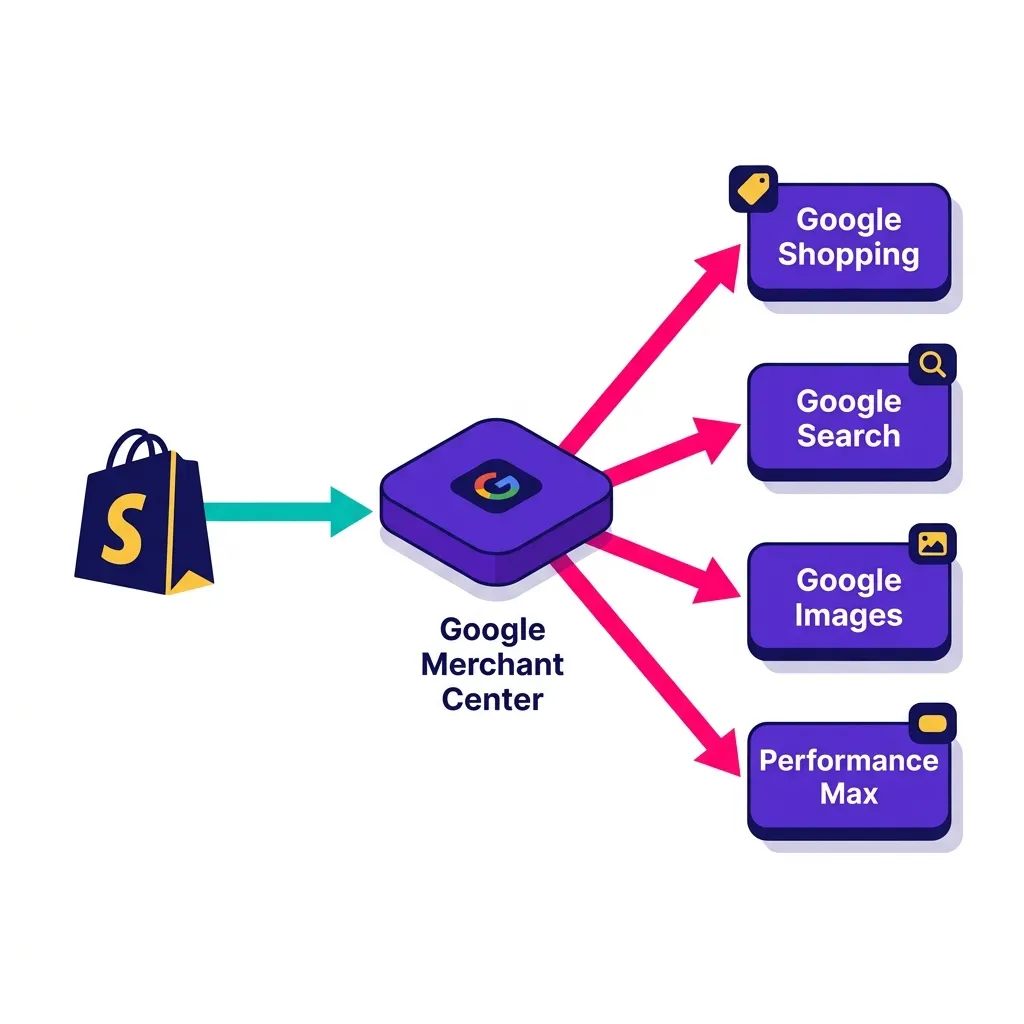
Before jumping into the technical steps, it is worth spending a moment on the “why.” Google Merchant Center (GMC) is the platform where retailers upload and manage their product data so it can appear on Google Shopping, Google Search, Google Images, YouTube, and across the entire Google ecosystem. Think of it as the bridge between your product catalog and every potential customer searching for exactly what you sell.
Without a properly configured Merchant Center account, your products simply cannot appear in Google Shopping results. You might be running Google Ads campaigns and still missing out on Shopping placements entirely because the product feed is broken or incomplete. That is a scenario I have seen happen far too often, and it always leads to the same frustration: budget being spent, but Shopping impressions nowhere to be found.
Furthermore, GMC is not just a gateway for paid Shopping campaigns. Even without spending a cent on ads, your products can appear in free listings on the Google Shopping tab, in organic Search results, and in Google Images. This free visibility alone makes the setup process an absolute priority for any Shopify merchant or ecommerce wanting to compete in their category.
Consequently, setting up your Google Merchant Center account correctly is one of the highest-leverage activities you can do for your store. A clean, verified, fully optimized feed is the foundation on which every Shopping campaign and Performance Max strategy is built.
Before You Begin: Prerequisites for a Smooth Google Merchant Center Account Setup
Just like in chess, preparation before the first move determines whether the endgame goes your way. Rushing into the Merchant Center dashboard without meeting the prerequisites is the fastest way to trigger account disapprovals, product rejections, or domain verification failures. Let me walk you through everything you need to have ready.
Your Website Must Be Fully Compliant
Google has very specific requirements for what your website must display before your Merchant Center account can be approved. This is not optional, and accounts get flagged regularly because store owners skip these steps.
Your website must include a clearly accessible Privacy Policy page, a Shipping Policy page, a Return and Refund Policy page, and a working Contact page with at least one method of reaching your business (email, phone, or contact form). These pages must be easy to find, ideally linked directly from your footer. If a Google reviewer cannot find your return policy in under ten seconds, your account is at risk.
Your store must also run on HTTPS. If you are on Shopify, this is enabled by default, so there is no action required on your end. However, if you have a custom domain that shows an SSL warning in the browser, that needs to be resolved before you proceed with verification.
Additionally, all product pages must be fully functional. Broken links, pages that redirect to a 404, or product URLs that do not load correctly will cause product disapprovals at the feed level. Do a quick audit of your catalog before submitting anything to Merchant Center.
The Google Accounts and Access You Need
You will need a Google account dedicated to your business operations. I strongly recommend using the same Google account connected to your Google Ads account, if you already have one. Mixing personal Google accounts with business accounts creates access and permissions headaches that are completely avoidable.
If you are setting GMC up on behalf of a client or a brand where multiple stakeholders need access, plan your user permissions carefully from the start. Merchant Center allows you to add users with different roles: Admin, Standard, and Email-only. Assigning Admin access to all team members is a common mistake that creates unnecessary security risks.
Product Data Readiness
Your Shopify product catalog should be as clean as possible before you connect it to Merchant Center. This means checking that every product has a descriptive title, a clear and accurate description, a high-quality primary image (minimum 100×100 pixels, ideally 800×800 or larger), a correct price, and an accurate stock status.
For branded products, you should also have your GTINs (Global Trade Item Numbers, commonly called barcodes) available. Google increasingly requires GTINs for branded products, and missing them will result in product disapprovals for items that should otherwise be perfectly eligible. We have seen firsthand how impactful this issue can be: in our Missing GTINs case study, we scaled revenue for a feed with hundreds of products lacking barcodes by implementing the right workarounds. If you manufacture your own products (private label), you can use an MPN (Manufacturer Part Number) or declare that no GTIN exists.
Prerequisite
Required?
Where to Action
HTTPS on your domain
Mandatory
Shopify Settings > Domains
Privacy Policy page
Mandatory
Shopify Pages + Footer menu
Shipping Policy page
Mandatory
Shopify Pages + Footer menu
Return & Refund Policy page
Mandatory
Shopify Pages + Footer menu
Contact page
Mandatory
Shopify Pages + Navigation
GTINs for branded products
Strongly recommended
Shopify product detail pages
Dedicated business Google Account
Mandatory
accounts.google.com
Step 1: Creating Your Google Merchant Center Account
With your prerequisites in order, it is time to create the account itself. Navigate to merchants.google.com and sign in with your business Google account. You will immediately be prompted to provide your basic business information.
Enter your business name exactly as it appears on your website and legal documents. Consistency matters here. If your About page says “Bloom Beauty Ltd” but you register in GMC as “Bloom Beauty,” discrepancies can trigger compliance reviews later. Your business name is what will appear to shoppers in certain ad formats, so accuracy is non-negotiable.
Next, select your country of sale. This determines the currency, tax rules, and shipping settings that apply to your account. If you sell in multiple countries, you will be able to add additional target countries later through Multi-country Shopping programs, but start with your primary market and expand from there.
You will then be asked whether you want to create a standard Merchant Center account or connect to an existing one. For most Shopify merchants starting fresh, select the standard creation path. If you are already running ads from a pre-existing GMC account and simply need to reconnect, select the “existing account” option and follow the verification steps.
Choosing the Right Account Type
One detail that trips up many eCommerce managers at this stage is the choice between a regular Google Merchant Center account and a Google Merchant Center Next account. Google has been gradually rolling out Merchant Center Next as the updated interface, which consolidates several features and simplifies the product feed experience.
If you are offered Merchant Center Next during sign-up, I recommend accepting it. The core functionality remains the same, but the user interface is cleaner and the reporting integrations are more intuitive. The feed management and product approval workflows work identically under the hood.
Step 2: Verifying and Claiming Your Website
Website verification is where many merchants encounter their first obstacle. This step proves to Google that you genuinely own and operate the domain you are linking to your Merchant Center account. Until your website is both verified and claimed, no products can go live.
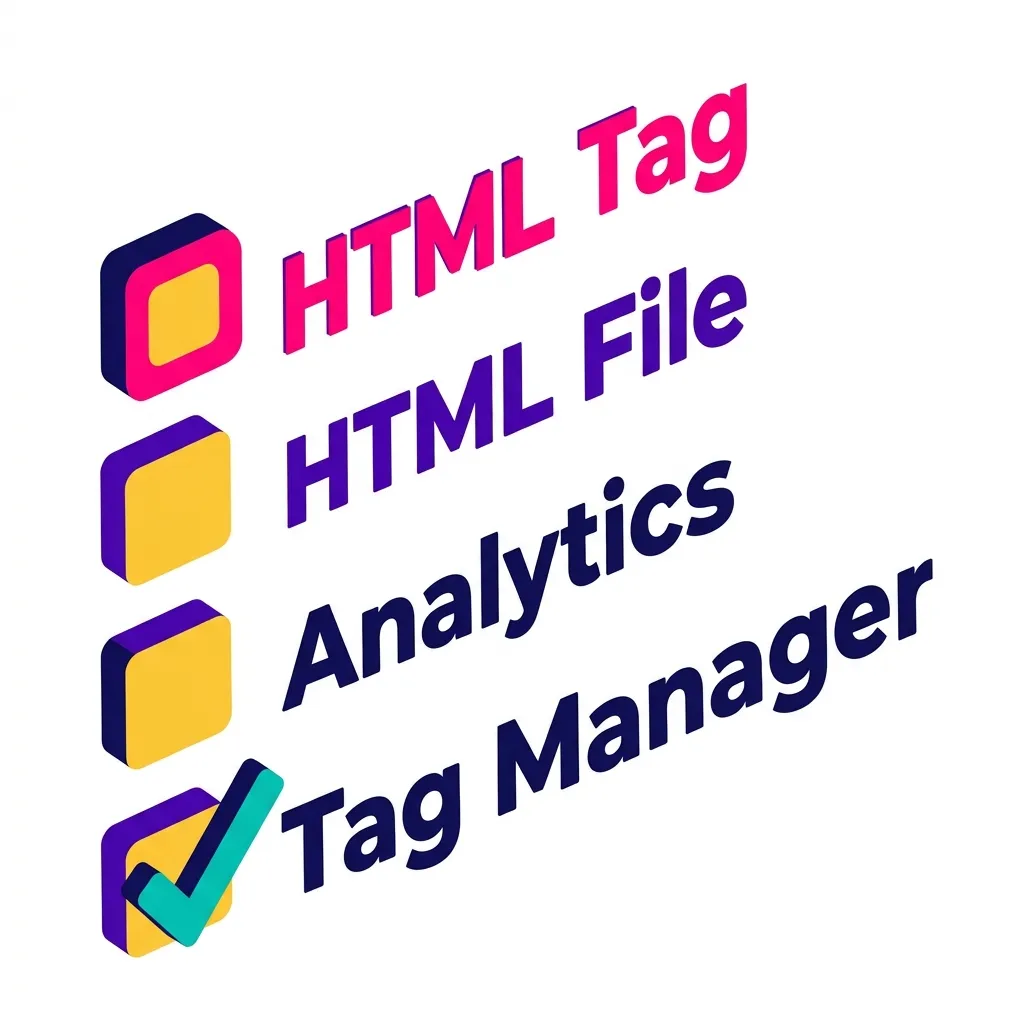
Merchant Center offers four verification methods: adding an HTML tag to your homepage’s <head> section, uploading an HTML file to your server root, linking through a verified Google Analytics property, or linking through Google Tag Manager. For Shopify stores, the GTM and Google Analytics methods are typically the fastest and least technically demanding.
The Shopify-Specific Verification Path
If you are using the Google & YouTube app (developed by Google) from the Shopify App Store, the verification and claiming process happens largely automatically. Once you install the app, connect your Google account, and go through the onboarding flow, the app injects the necessary verification code into your theme automatically. This is the recommended path for Shopify merchants that want to save significant setup time – the issue however is that you have limited possibilities to customize and optimize your feed, which is incredibly important for eCommerce.
However, verification through the Google & YouTube app does not always work perfectly if your Shopify theme has custom modifications to the <head> section. If the automatic verification fails, switch to the manual HTML tag method. Log in to your Merchant Center account, navigate to Settings > Business Information > Website, copy the provided HTML meta tag, and paste it into your Shopify theme’s theme.liquid file, directly before the closing </head> tag. Save and re-trigger the verification.
After verification is complete, you must also claim the website. Verification proves you can access the site; claiming establishes exclusive ownership. Only one Merchant Center account can claim a domain at a time, so if a previous agency set up an account for you, they may still hold the claim. In that case, contact them to release the claim or transfer account ownership before proceeding.
Step 3: Configuring Shipping and Tax Settings
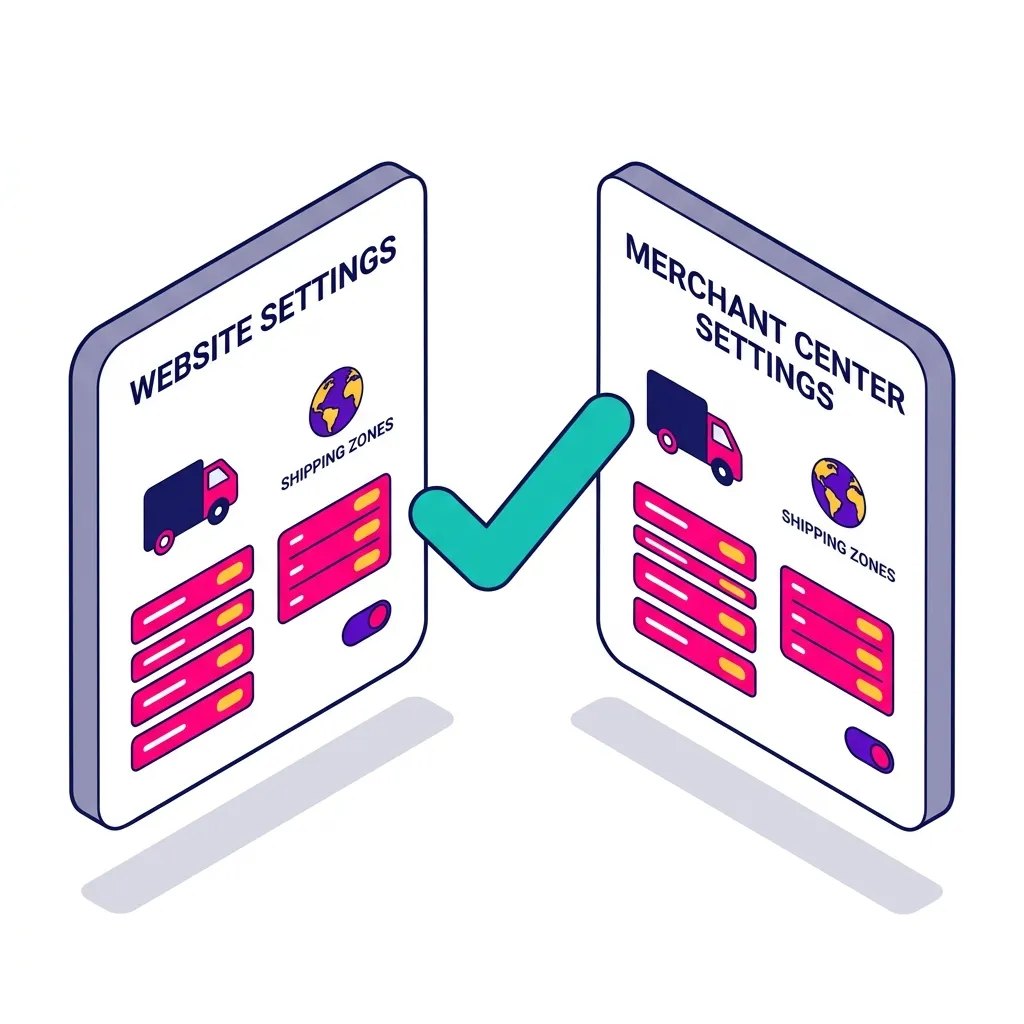
This is one of the most overlooked steps in the Google Merchant Center setup, and it is absolutely critical. If your shipping settings in GMC do not match the actual shipping options shown on your website, Google will flag your products for a “mismatched shipping information” policy violation.
Navigate to Settings > Shipping and Returns in your Merchant Center dashboard. Here you will create one or more shipping services that define how you ship, to which countries, and at what cost. Each shipping service requires a name, a delivery time estimate, and a pricing model.
Configuring Your Shipping Service
For most Shopify Fashion and Lifestyle brands, the most common setup involves a combination of free shipping above a threshold (for example, free shipping on orders over €50) and a flat rate for orders below that threshold. To replicate this in Merchant Center, create a single shipping service with two rate tiers: a flat rate that applies when order value is below your threshold, and a “free” rate that applies above it.
Make absolutely sure these thresholds and prices match exactly what appears on your website’s shipping policy page and at checkout. If your website says “free shipping on all orders” but your GMC shipping service shows a €4.99 flat rate, your products will be disapproved. Google crawls your website and actively cross-references the data.
For tax settings, if you sell in the United States, you must configure tax rates per state based on your nexus. For European markets, VAT is typically included in the product price you display in the feed, so you simply set the tax rate to zero and confirm that prices are VAT-inclusive. Always align this with your accountant’s guidance to ensure compliance.
Step 4: Setting Up Your Product Feed
The product feed is the core engine of your entire Google Shopping operation. It is the structured data file that tells Google everything about your products: the title, description, price, availability, images, category, GTIN, and dozens of other attributes. A well-optimized feed is the single biggest differentiator between Merchant Center and Google Ads accounts that perform at high ROAS and those that struggle with approvals and poor impression share.
For Shopify stores, you have two primary options for feed creation. The first is the Google & YouTube app, which automatically creates a Content API feed connected directly to your Shopify catalog. The second option is using a dedicated product feed management tool such as DataFeedWatch, Channable, or Feedonomics. For stores with more than a few hundred products or complex catalog needs, I strongly recommend a dedicated feed tool.
The Most Critical Product Feed Attributes
Every product in your feed must include certain mandatory attributes. Missing even one of these will result in a product disapproval. Let me break down the non-negotiables and what “optimized” looks like versus “approved but underperforming.”
The product title is one of the most important attributes for Shopping ad performance. Google’s algorithm uses your title to match your product to search queries. A title like “Dress” will barely compete, while a title structured as “Brand + Product Type + Key Differentiator + Color/Size” (for example, “Bloom Studio Floral Wrap Midi Dress, Navy Blue, Women’s”) will capture far more relevant queries. Front-load the most important keywords, especially for Fashion products where category, style, and color drive a huge portion of searches.
The product description should be clear, accurate, and detailed, without promotional language like “Best deal!” or “Buy now!” Google explicitly prohibits promotional text in descriptions. Use the description to provide genuine context: materials, dimensions, use cases, and care instructions for a lifestyle product, for example.
Feed Attribute
Required?
Optimization Tip
id
Mandatory
Use your Shopify variant SKU. Never change it once live.
title
Mandatory
Brand + Type + Key Feature + Color (max 150 chars)
description
Mandatory
Plain factual text, no promotional language, up to 5000 chars
link
Mandatory
Direct URL to the product variant page, not the collection
Must match checkout price exactly, incl. currency code
availability
Mandatory
in_stock / out_of_stock / preorder. Must be real-time.
gtin
Strongly recommended
Required for branded products to avoid disapproval
google_product_category
Recommended
Use the most specific GMC taxonomy ID available
custom_label_0-4
Optional but valuable
Use for campaign segmentation: margin tier, season, hero SKU
Custom Labels: Your Secret Weapon for Campaign Control
One often-underutilized feature in the product feed is custom labels. These are five free-form fields (custom_label_0 through custom_label_4) that you can populate with any value you want. They have no effect on product approvals or organic listings, but they are enormously powerful when you want to segment your Shopping or Performance Max campaigns.
For example, you could assign custom_label_0 a value of “high-margin” for products with over 60% gross margin and “low-margin” for everything else. Then in your Google Ads account, you can create separate bidding strategies for each segment, pushing more budget toward the high-margin products where you can afford a higher CPA. This level of bidding intelligence is only possible when your feed has clean, strategic custom labels.
Similarly, using custom labels to tag “hero-sku”, “seasonal-drop”, or “new-arrival” allows your PPC team to launch targeted campaigns for specific catalog segments without having to manually select individual products. It is the difference between driving a car with a steering wheel and driving one with a joystick.
Step 5: Diagnosing and Fixing Product Disapprovals
Even with a careful setup, product disapprovals are normal. What is not acceptable is letting them sit unresolved. The Diagnostics section of your Merchant Center account is where you will find every error and warning affecting your product data, and it is a tab you should check at least weekly.
Navigate to Products > Diagnostics in your GMC dashboard. You will see a breakdown of disapproved products, products with warnings, and products pending review. Click on any error type to see the specific products affected and the exact reason for disapproval.
The Most Common Disapproval Reasons and How to Fix Them
The single most frequent cause of product disapprovals is a price mismatch between the feed and the website. This happens because your Shopify store updates prices in real time, but your feed might only refresh every 24 hours. When a sale ends or a price changes, the feed lags behind, and Google flags the discrepancy. The solution is to automate your feed updates as frequently as possible. With the Google & YouTube app, Shopify sends price updates via the Content API in near-real time. With a third-party feed tool, check that your refresh schedule is set to multiple times per day.
Another very common issue is missing or invalid GTINs. For branded products (anything with a recognizable manufacturer brand), Google requires the GTIN. If you do not have it, go to your supplier or manufacturer to obtain the correct barcode/EAN. Do not fabricate a GTIN or submit a random number. Google validates GTINs against the Global GS1 database, and invalid values will trigger an immediate disapproval.
Image quality violations are also surprisingly common. Google requires that product images show the item clearly against a clean background, with no watermarks, no promotional overlays, and no placeholder graphics. For Fashion in particular, lifestyle images with heavy props or dark backgrounds are frequently flagged. Your primary image should ideally be a clean studio shot on a white or neutral background. Lifestyle images can be added as additional images (using the additional_image_link attribute) but should not be the primary.
Step 6: Linking Google Merchant Center to Google Ads
Once your products are approved and your feed is clean, the final step in the Google Merchant Center setup is connecting your GMC account to your Google Ads account. This link is what enables you to actually run Shopping ads and Performance Max campaigns using your product data.
Inside your Merchant Center account, go to Settings > Linked accounts > Google Ads. Click “Link account” and enter your Google Ads Customer ID (a ten-digit number formatted as XXX-XXX-XXXX, visible in the top right corner of your Google Ads dashboard). A link request will be sent to your Google Ads account, where you must accept it under Tools & Settings > Linked accounts > Google Merchant Center.
Once the link is active, head to your Google Ads account and create a new campaign. You will immediately see a Shopping or Performance Max campaign type that draws directly from your linked Merchant Center product data. Your product feed is now your creative library, pricing reference, and audience signal source all in one. If you want to understand how to get the most out of this campaign type, our guide on Performance Max for eCommerce is a great next read.
Enabling Free Listings
One step that many brands skip entirely is enabling Surfaces Across Google, which allows your products to appear as free organic listings on the Google Shopping tab. This is completely separate from paid campaigns and requires no ad budget whatsoever.
In your Merchant Center account, navigate to Growth > Manage programs > Free listings and opt in. If your products are approved and your feed is healthy, you will start appearing in organic Shopping results within a few days. For stores just getting started without a large ad budget, this free visibility can generate meaningful traffic while you build your paid campaigns.
How Google Merchant Center Setup Works at Midsummer Agency
At Midsummer Agency, we treat the Google Merchant Center setup as the foundation upon which every Shopping and Performance Max campaign is built. We have seen too many accounts where brands are spending thousands per month on Google Ads, but their feed is full of disapproved products, missing GTINs, and unoptimized titles that are leaving tens of thousands of impressions (and dollars!) on the table.
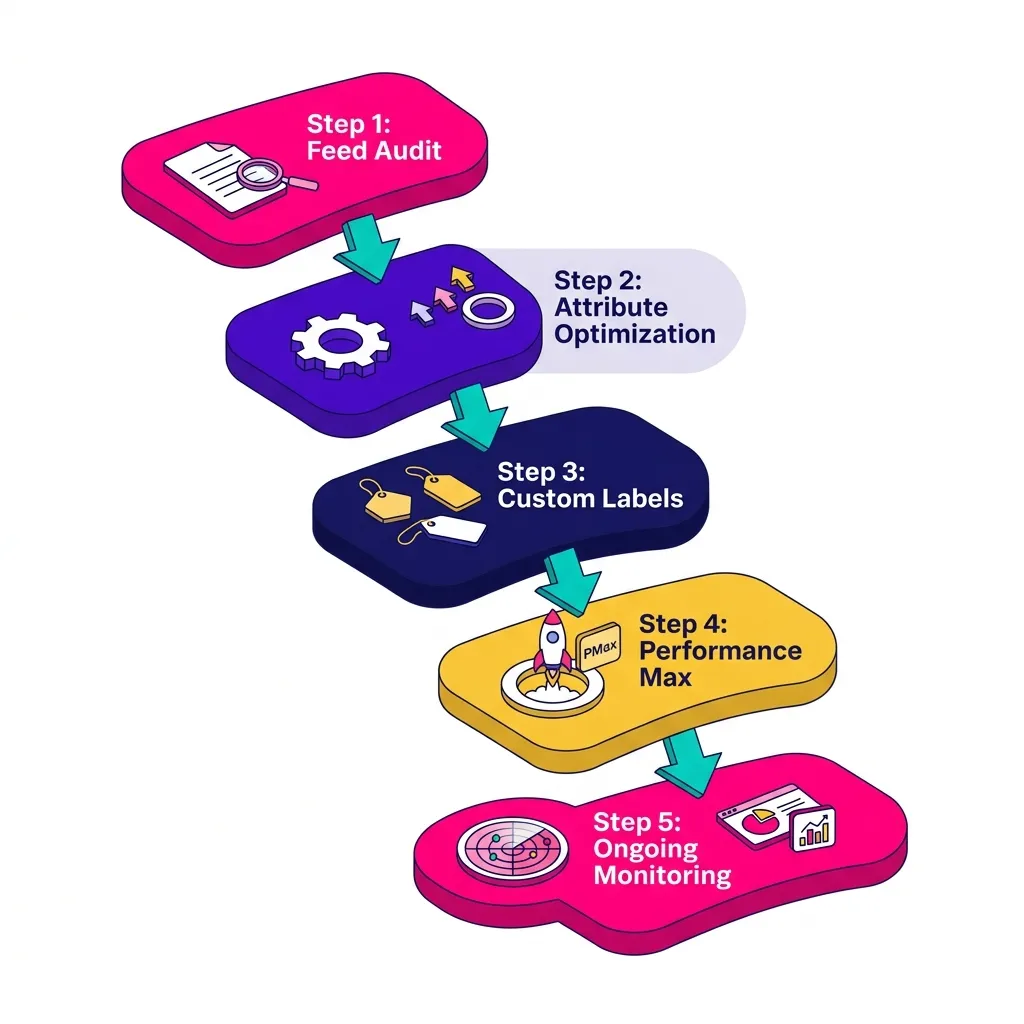
Our process begins with a complete feed audit before we touch any campaign settings. We review every attribute across your entire catalog, identify mismatches between your website and your feed, and build a prioritized fix list. We then implement feed rules, custom labels, and supplemental feed layers to give your campaigns the segmentation granularity they need to perform.
We also set up real-time monitoring so that any new product disapproval triggers an alert before it starts costing you impressions. A healthy feed is a living document that requires continuous attention, not a one-time setup and forget. We integrate this feed management process directly into a full PPC campaign management strategy to ensure your catalog always shows up where your customers are looking. For brands looking for intelligent, AI-powered management, our Google Ads experts handle feed optimization as part of an end-to-end paid search service.
Your Google Shopping Foundation Starts Here
Getting your Google Merchant Center account setup right is not glamorous work, but it is the kind of work that makes the difference between a Shopping campaign with a 4.0 ROAS and one that barely breaks even. Every product disapproval is a missed impression. Every mismatched price is a wasted click. Every missing GTIN is a product that simply will not compete.
The good news is that once your feed is clean, your website is verified, and your settings are aligned, the whole system runs efficiently. Your products show up on Google Shopping, your Performance Max campaigns have the data quality they need to optimize, and your free listings start driving organic traffic at zero cost.
Think of it this way: your product feed is the opening game plan. And like any game plan, the better prepared you are before the first move, the more control you maintain over everything that follows.
Ready to get your Google Shopping campaigns built on a solid foundation? Check out our PPC services or request a personalized feed audit today! We’ll review your entire product catalog, fix what’s causing disapprovals, and make sure your Google Shopping setup starts delivering the results your products deserve. Let’s turn your catalog into a conversion machine, side by side!