How Google Merchant Center Works with Shopify: A Complete Guide
Imagine this: You’ve just launched your new product range. The photography is stunning, the Shopify store is fast, and you’re ready to scale. You turn on…
Imagine this: You’ve just launched your new product range. The photography is stunning, the Shopify store is fast, and you’re ready to scale. You turn on your Google Ads, and… nothing. A big red banner in Google Merchant Center says “Account Suspended”. For an established e-commerce brand, this is the nightmare scenario where revenue drops to $0 overnight.
Connecting Shopify to Google Merchant Center isn’t just about “installing an app.” It’s about building a data pipeline that passes Google’s strict quality checks. It’s the difference between a feed that generates profitable sales and one that gets flagged for “Misrepresentation.”
In this guide, we’ll walk you through the exact setup process we use for our $5M+ DTC clients. We will cover the verification requirements and the “feed optimization” secrets that separate standard stores from market leaders.
The Bridge: How the Integration Actually Works
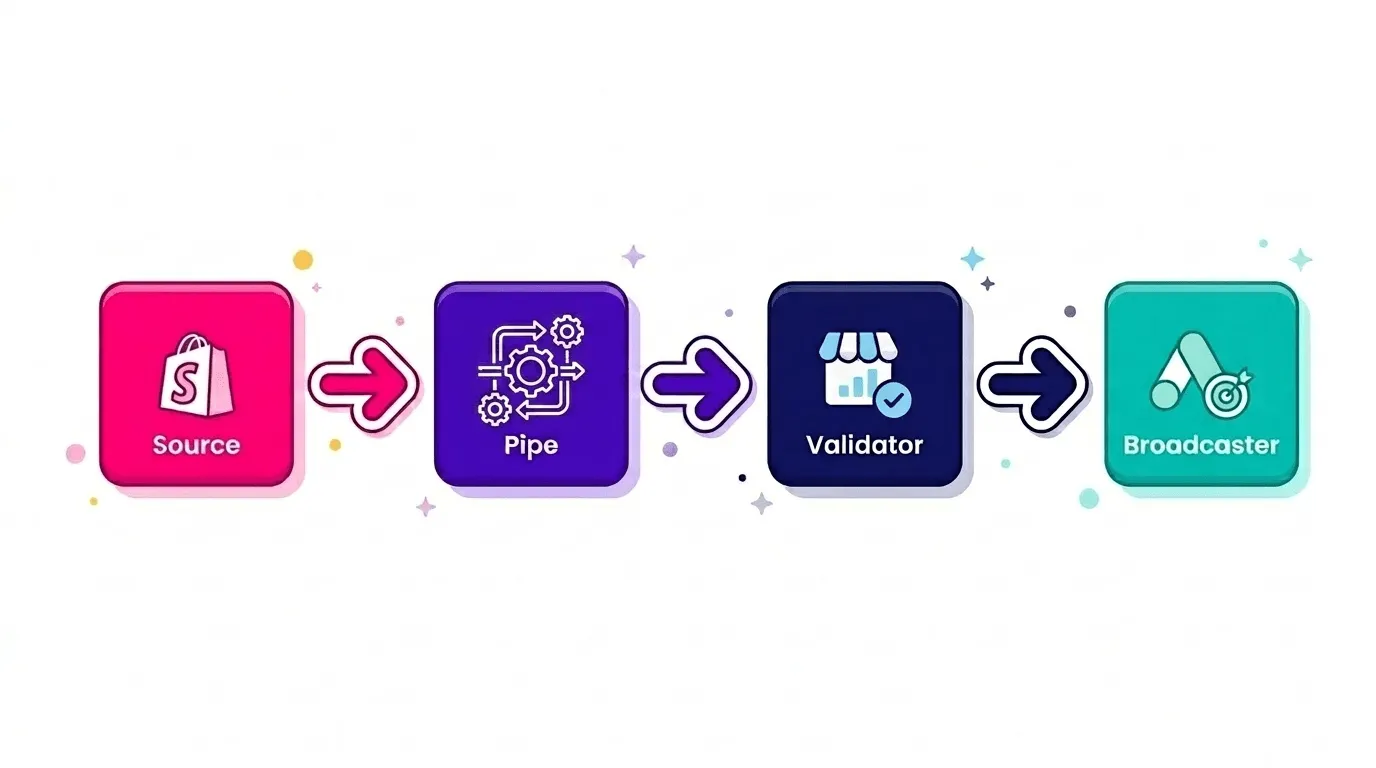
To fix a problem, you first need to understand the plumbing. The integration relies on a three-step flow of data that turns your Shopify products into live Google Shopping ads.
First, Shopify is the Source. This is where your master data lives: your product titles, descriptions, prices, and inventory levels. It is the single source of truth for your business.
Second, a feed management tool is the Pipe. While Google offers a native app for this connection, it comes with very limited customisation options. At Midsummer, we use tools like DataFeedWatch, Channable, FeedOptimise to push data from Shopify to Google – giving us full control over how product titles, descriptions, and attributes are structured before they ever reach Merchant Center.
Third, Google Merchant Center is the Validator. It receives the data and checks it against Google’s policies. Does the price match the landing page? Is the shipping policy clear?
If yes, it approves the products and sends them to Google Ads, which acts as the broadcaster to show your ads to customers. A common misconception is that GMC runs the ads: it doesn’t. It simply holds and validates the inventory for your Performance Max and Shopping campaigns.
Prerequisites: The “Boring” Verification Stuff
Before you even think about syncing products, you need to pass Google’s identity verification. Google has become incredibly strict to fight spam, and this is where most new merchants fail.
You cannot just spin up a store and run ads same-day anymore. You need to prove you are a real business with a tangible footprint. Failing to do this correctly is the #1 reason for immediate account suspensions.
Requirement
Details
Physical Address
Must match your legal documents. You cannot use a PO Box or virtual office as your primary verified address. Google verifies this against public business registries.
Phone Number
Google will often require a voice call verification. VoIP numbers (like Google Voice) are frequently rejected. Use a real mobile or landline associated with the business.
Tax ID
Your EIN (in the US) or VAT ID (in Europe) must exactly match the legal business name in your Shopify settings. Mismatches here cause instant flags.
Step-by-Step Setup (The “Right” Way)
Here is the exact workflow to connect the systems without triggering a suspension. Follow this order specifically to ensure data consistency.
Step 1: Install the Official App
Log in to your Shopify store and install your feed management tool of choice – we use DataFeedWatch, Channable or FeedOptimise for most of our clients.
Avoid the native Google & YouTube app if you can; it gets the connection working but gives you almost no control over how your data is structured. A proper feed tool is worth it from day one
Step 2: Claim Your Domain
Merchant Center needs to know you own the URL. Your feed tool usually handles this via an API handshake during the setup wizard.
If it fails, you may need to copy a specific HTML meta-tag from GMC and paste it into your `theme.liquid` file in Shopify (under the “ section). This verifies ownership instantly and is a one-time requirement.
Step 3: Configure Tax & Shipping (The Kill Switch)
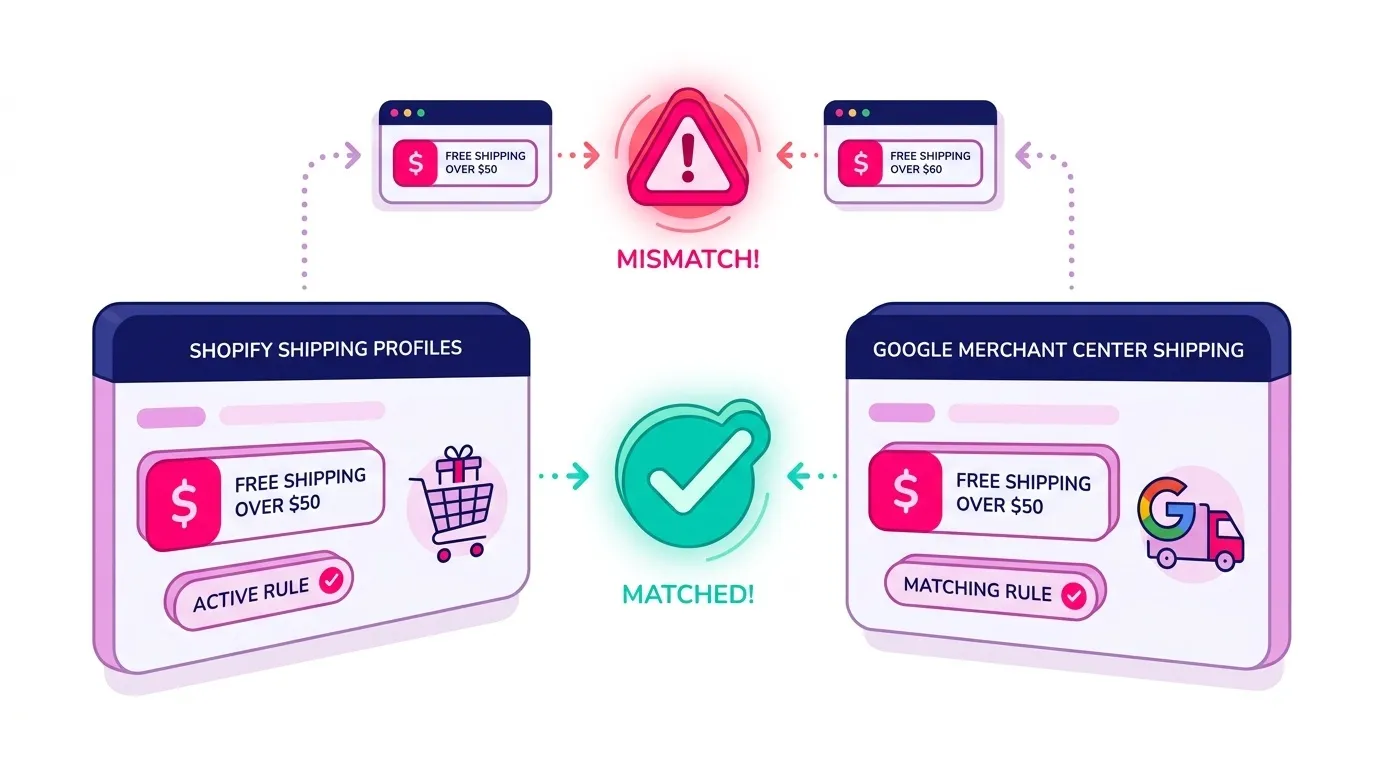
This is the most critical technical step. You must configure your shipping settings in GMC to match your Shopify checkout exactly.
If your Shopify store charges $15 for shipping, but your Merchant Center settings say “Free Shipping,” Google’s bots will detect the mismatch during a test crawl. They will suspend the account for “Misrepresentation” because the user experience does not match the ad promise.
Be precise. If you offer free shipping over $50, set that specific rule in GMC too. If you ship to multiple zones, ensure the rates mirror your Shopify shipping profiles.
How Midsummer Optimizes Feeds (The “Secret Sauce”)
Connecting the feed is just the baseline. Optimizing it is how we scale complex multichannel operations. The default integration often produces “lazy” data that hurts your Performance Max campaigns.
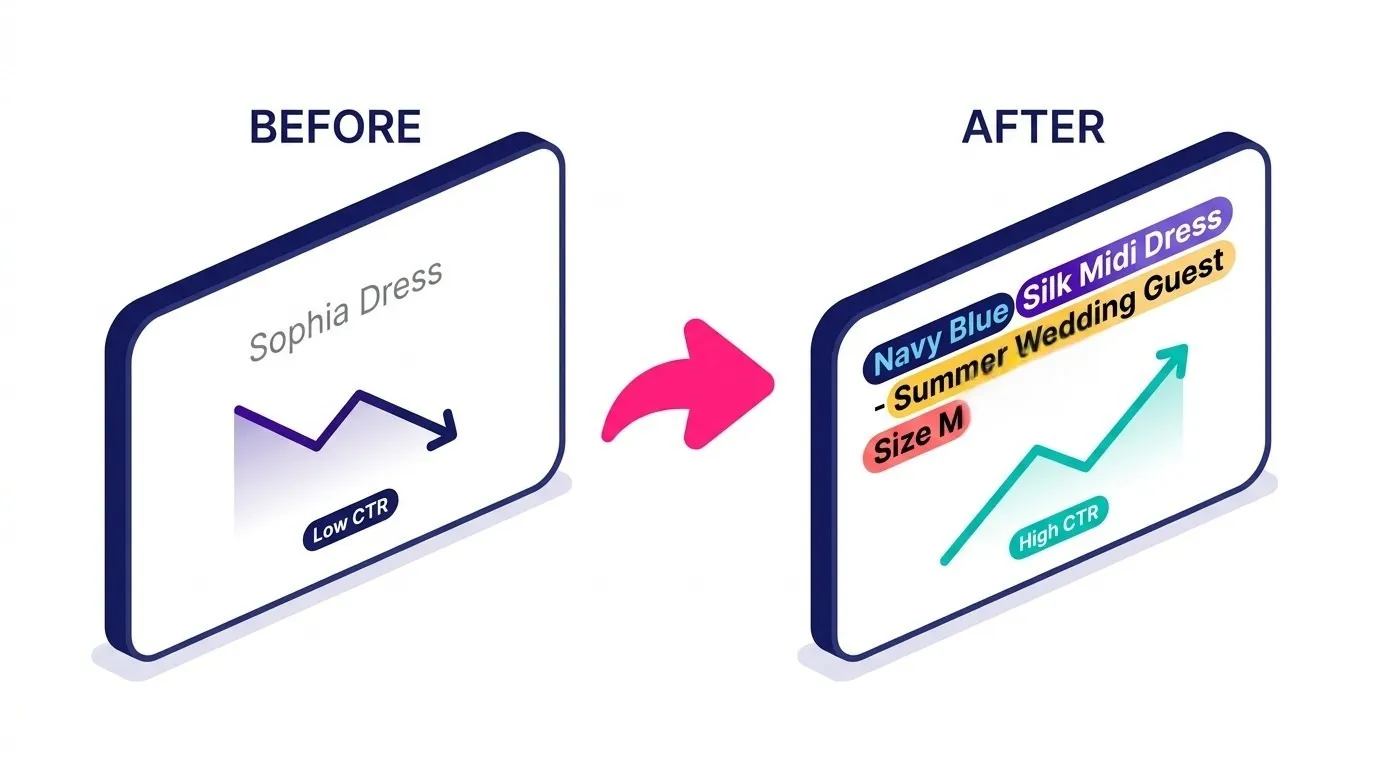
The default integration simply pulls your Shopify Product Title. For a kitchenware brand, this is often terrible. A title like “Cast Iron Pan” tells Google little to nothing.
At Midsummer, we rewrite these titles in the feed without changing them on the website. We change “Cast Iron Pan” to “Staub Enamelled Cast Iron Skillet – 26cm – Induction Compatible – Oven Safe to 260°C”. This captures the intent of the user (Staub, Cast Iron, Induction Compatible).
We also use Microsoft Clarity to analyze user behavior. If we see high traffic from Shopping Ads but low conversions, we check the session recordings.
Often, the image in the ad showed a “Midnight Blue” color option, but the link landed on a variant selector that defaulted to a different color. This mismatch kills ROAS. We fix it by forcing the URL in the feed to link to the specific variant ID (`?variant=12345`), ensuring a seamless landing page experience.
Common Pitfalls for Scaling DTC Brands
As you scale, new problems emerge. Here are the specific traps we see facing growing multichannel e-commerce brands.
1. Image Overlays:
Never put text like “New Arrival” or “20% OFF” on your main product image. Google’s AI can read this text and will disapprove the image for policy violations. Keep the main image clean, just the product on a white or neutral background. Use lifestyle images for the additional image slots, but keep the Hero image strict.
2. “Ghost” Stock:
Shopify’s API doesn’t sync instantly – it can take 15–30 minutes for a stock change to reflect in Merchant Center.
For high-demand launches or seasonal peaks, this means Google can keep showing ads for a product that’s already sold out, and you’re paying for every one of those clicks.
The cleaner fix is to set up automated rules in Google Ads that pause the relevant campaigns when inventory drops below a safe threshold – most feed tools including Channable support inventory-based rules that trigger this automatically. For critical launches, it’s also worth monitoring stock levels manually and pausing campaigns the moment you’re close to zero rather than waiting for the sync to catch up.
Conclusion
Getting the feed live is just the starting point. The real work is in keeping it accurate, optimized, and aligned with how your customers actually search.
Your product feed is a living asset. Titles need to reflect search intent, shipping settings need to match your checkout exactly, and inventory needs to stay in sync – especially across a large or complex catalogue.
If you’re dealing with policy flags, disapproved products, or wasted spend on generic keywords, the issue is almost always in the feed. Contact us today, we’ll audit what’s there and tell you honestly what needs fixing.