If you’re running Google Ads and not using ad extensions…we need to talk. You’re basically leaving money on the table.
Think of extensions like the toppings on a pizza (so Italian, right?), you can totally eat it plain, but once you throw on some pepperoni, mushrooms, or extra cheese? Now we’re cooking.
Google Ads extensions (now referred to as ‘assets’) are little add-ons that give your ads more space, more info, and more chances to get clicks (improving the CTR).
They give more information about your business and its products or services. They can improve the visibility of your ad and often improve the customer experience.
They’re free to use (yep, free!), and when done right, they can make your ads way more appealing to potential customers.
So, if your ads are just sitting there, looking basic, this blog is here to change that.
Ad Assets (aka Extensions) Types (And How to Use Them)
Sitelink Assets
Sitelink assets (aka sitelink extensions) allow you to add additional links beneath your main ad text, which can redirect users to specific pages on your website.
For example, if you run an e-commerce store, you could add links to your Best Sellers, Seasonal Offers, or New Arrivals pages.
These extra links help users quickly navigate to relevant sections of your site, improving their experience and increasing the likelihood of a click.
I always recommend adding sitelinks to enhance the visibility of your site. By providing users with more options, they’re more likely to find exactly what they need and click through.
Moreover, sitelinks can contribute to your overall ad performance by improving your Click-Through Rate (CTR). Google, in fact, rewards ads with multiple sitelinks, potentially improving ad rank and visibility.
You can create sitelinks at account, campaign, or ad group level. Sitelinks created at higher levels of your account hierarchy can serve alongside the ones created at lower levels if Google believes they’re going to improve the account’s performance.
For example, if you have sitelinks at the account level, these will be eligible to serve alongside the ones at the campaign level (so I’d recommend not writing the same sitelinks twice).
I’d also suggest, based on my experience, adding at least 4 sitelinks (up to 10). You can add a total of 20 sitelinks in the account to give Google’s algorithm more options to choose from.
Remember to make sure to read Google’s asset requirements to avoid your asset being rejected.
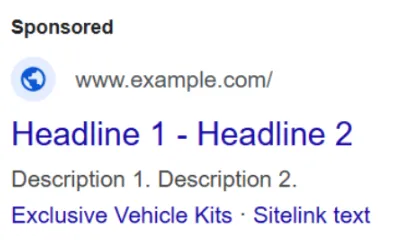
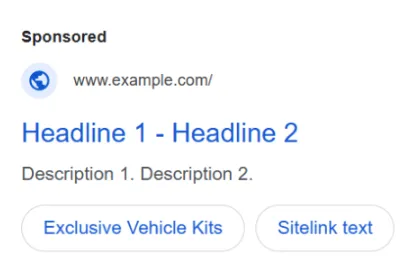
Your Google account requires at least 2 sitelinks to appear in the ad. The ad can show up to 6 sitelinks if this appears on the desktop, while up to 8 on a mobile device.
Here are some examples of how sitelinks appear based on device:
Laptop:
Mobile:
Call Assets
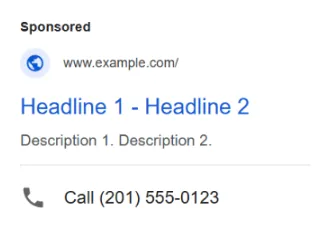
Call assets (aka call extensions) add your phone number directly to your Google Ads, allowing users to call your business directly from the ad on mobile devices.
This is especially useful for businesses that rely on phone calls for sales, bookings, or customer service, such as local service providers, retail stores, and restaurants.
In my experience, I’d recommend using call extensions as they make it easier for users to connect with your business immediately.
With the growing use of mobile devices, having a clickable phone number in your ad is incredibly valuable. Additionally, this feature can increase conversion rates, as users who are ready to make a decision can simply pick up the phone and call.
My advice for you in this case would also be: ensure your business is set up to handle calls effectively, so be ready to answer calls promptly.
Secondly, I’d say you should set up call tracking to monitor the quality and volume of calls generated from these extensions.
Finally, remember to check the requirements; otherwise, Google might reject it.
This is what the call asset looks like in an ad:
Callout Assets
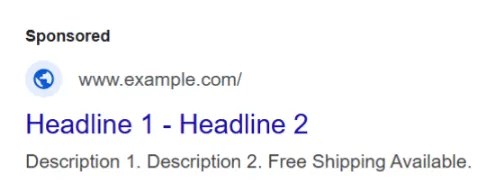
Callout assets (aka callout extensions) are short, customizable snippets that you can add to your ad to highlight special offers, benefits, or features.
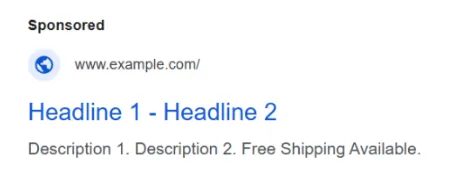
These are not clickable like some other assets and might include phrases like “Free Shipping”, “24/7 Customer Support”, or “No Minimum Purchase”. They appear below the main ad text, giving users more reasons to click on your ad.
I believe you should use them as these are an excellent way to showcase your unique selling points (USPs) without cluttering your ad copy. They give potential customers a quick, easy-to-read snapshot of why they should choose your business over competitors.
My advice to you, if you’re reading this blog post, is to keep callouts short and sweet. Remember, the key is to focus on value and urgency. Make them specific to what your customers care about.
For example, if you offer free returns or a satisfaction guarantee, highlight these in your callouts to reduce hesitation from potential buyers.
This is what the callout asset looks like in an ad, based on device:
Desktop:
Mobile:
Structured Snippet Assets
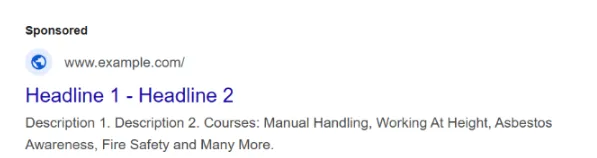
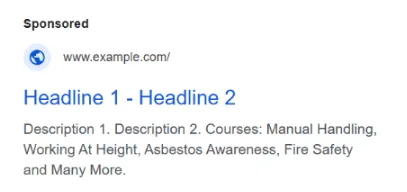
Structured snippets are a type of extension that allows you to highlight specific aspects of your products or services, such as brands, services, or types.
These are clickable, but you have a specific list of headers to choose from:
- Amenities
- Brands
- Courses
- Degree programs
- Destinations
- Featured hotels
- Insurance coverage
- Models
- Neighborhoods
- Service catalog
- Shows
- Styles
- Types
For example, a hotel could highlight amenities like a pool, a gym, and free Wi-Fi.
I’d recommend using the structured snippets as they make it easy for users to see key information about your products or services at a glance.
This helps clarify your offerings and boosts user confidence before clicking through. Additionally, this extension can give your ad more space and make it stand out from the competition.
Google often favors ads that provide more detailed, relevant information, improving the chances of a higher ad rank.
Make sure to check the structured snippets requirements, as these are subject to the standard Google Ads policies.
Desktop:
Mobile:
Price Assets
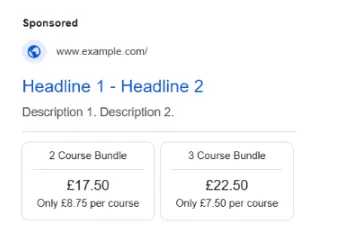
Price assets (aka Price extensions) allow you to show pricing information for specific products or services directly in your ad.
For example, if you sell a software subscription, you can show prices for Basic ($9.99/month), Pro ($19.99/month), and Premium ($29.99/month) plans.
These extensions are particularly useful for e-commerce businesses, subscription services, or any business that offers different pricing tiers.
I’d advise you to test the price extensions, if these are coherent with your business, to make your ad more transparent and informative by showing users exactly what they can expect to pay.
They also help users compare different options directly from the search results, making them more likely to choose your product or service over competitors.
Something I always suggest is trying to keep your pricing competitive and clear. Avoid overcomplicating your price list. A clean, straightforward presentation of your offerings is key to enticing potential customers.
Moreover, make sure the prices match the landing page for consistency and to avoid a high bounce rate.
Location Assets
Location assets (aka location extensions) display your business address, phone number, and a clickable map link to help users find your physical location.
I believe this is a must-have for businesses with brick-and-mortar stores, local services, or franchises.
My advice would be to use location extensions for local businesses as these are highly beneficial, giving your business a physical presence in the search results and making it easy for potential customers to find you.
Whether it’s a retail store, restaurant, or local service provider, location extensions make it easier for customers to call or visit, boosting your foot traffic and increasing local conversions.
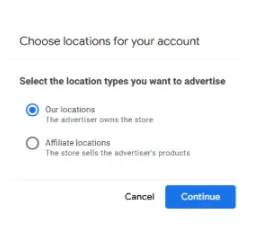
These extensions can show your business information on both mobile and computer devices on the Search Network, Display Network, YouTube, and Google Maps.
In the screenshot above, once you select the ‘location asset’, you need to choose the location type you want to advertise: you can opt for your own location or for the affiliate one, where the store sells the advertiser’s products.
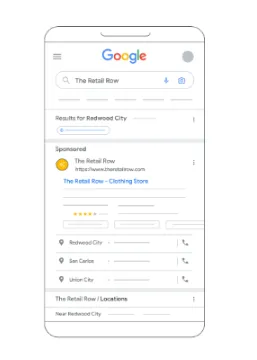
Here is a screenshot of how the assets are displayed if you own your store directly:
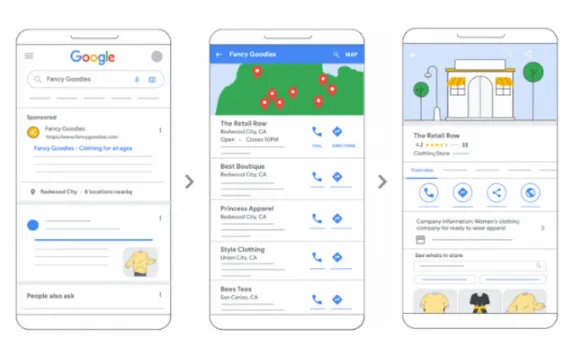
Here is a screenshot of how the assets are displayed if you sell products or services in stores you don’t own directly (manufacturers and aggregators):
App Assets
App assets (aka app extensions) are designed for businesses that have a mobile app that is within the Google Play or Apple App Store.
They allow you to add a link to your app in your Google Ads so that users can download it directly from the search results.
This extension is ideal for businesses that want to drive app installations, such as gaming apps or mobile e-commerce platforms.
I’d recommend using this asset to increase app downloads without requiring users to leave the search results. It’s a simple, quick, and direct way (and you can also track the performance).
You fancy a tip? Use a dedicated landing page that highlights the key features of your app. Also, ensure that your app’s download link is easy to find and use across different devices.
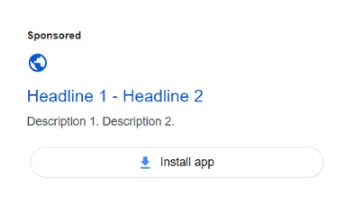
Lead form assets (aka lead form extensions) allow users to fill out a contact form directly from the ad without needing to visit your website. This can be incredibly helpful for businesses in need of leads, such as service-based businesses or those offering free consultations.
Bear in mind that before using this powerful tool, you need to follow some requirements.
If all is good, I’d suggest that you evaluate lead form assets, as they cut down on the steps a potential customer needs to take to get in touch. Instead of clicking through to a landing page and filling out a form there, users can submit their information directly from the ad. This reduces friction, improves conversion rates, and can help you capture leads faster.
When creating your form, ensure that it is short and simple to avoid losing prospects mid-way through the submission process.
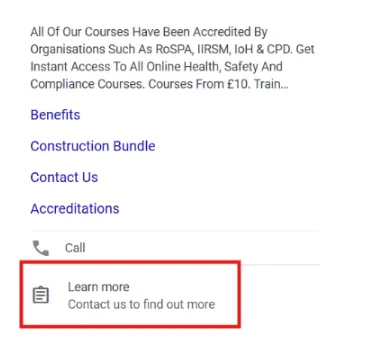
Image Assets
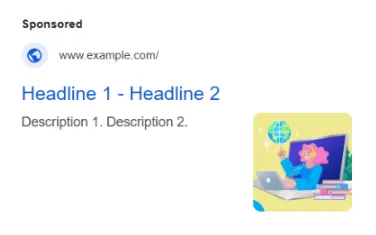
Image assets (aka image extensions) allow you to add high-quality images to your Google Ads campaigns, giving your listings a visual appeal that text alone cannot convey. These images can showcase your products, services, or anything visually compelling about your business.
I always recommend using images that can make your ads stand out among the competition, especially for visually-driven industries like fashion, food, or home goods.
They help capture user attention, make the ad more engaging, and increase the chances of driving clicks (potentially improving the CTR).
I have a couple of recommendations for you here:
Use images that are relevant, high-quality, and brand-consistent
Don’t just add a generic stock photo, as users respond better to visuals that are authentic and represent your brand. Whether it’s a product image or a service in action, make sure the image resonates with your ad’s messaging and your audience’s needs.
Check the Google requirements
Make sure to check the requirements set up by Google to avoid your image being rejected.
The images need to respect the size, ratio, and resolution; they don’t have to contain text or graphic overlays, nor too much blank space, nor blurry or unclear images, nor poorly cropped ones.
Consult the Google best practices
Google offers a guide with best practices: you can add up to 20 horizontal, vertical, and square images. If you don’t have the chance to upload images, Google offers some tools:

The Google AI can create images for you, or you can use some from the free stock offered from the platform (you can only use these stock images in ad campaigns you create in Google Ads).
Here is an example of how an image asset is displayed on an ad:
Business Name Asset
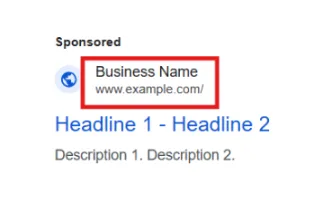
This asset type, also called business name extension, displays your business name next to your ads. This can help increase brand visibility and ensure users recognize your company immediately, especially if it’s a local or well-known brand.
I’d always recommend adding this feature as it helps reinforce brand identity in your ads, provides consistency, and improves ad legitimacy.
My tip for you is to use this extension for brand recognition campaigns or when building trust is essential.
Business Logo Asset
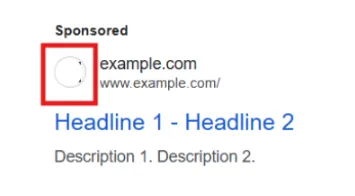
This asset type, also called business logo extension, allows you to show your brand’s logo alongside your ads in the SERP and helps users easily recognize your business and increase trust.
Logo extensions give your ads a more branded and professional look. Users are more likely to engage with ads that feel familiar and trustworthy, especially in competitive markets.
I’d recommend that you ensure your logo is high-quality and clearly visible, especially on mobile devices. Use a logo that’s simple and easily recognizable, without unnecessary clutter, as it needs to work across various screen sizes.
Message Asset
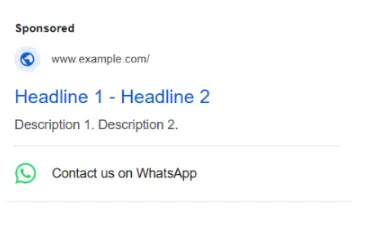
Message assets (aka message extensions) enable users to send a text message directly from your ad to your business. This feature is especially useful for mobile campaigns, allowing users to initiate a quick text conversation rather than calling or filling out a contact form.
Why do I think this is useful? I’ve used this feature with one of my lead-gen clients, and it was successful! This feature offers a more personal and immediate way for customers to reach out.
For businesses that rely on fast communication, such as local services (e.g., auto repair, home improvement), this extension can drive quick engagement. It’s perfect for users who prefer texting (ooops, me!) over calling or filling out forms.
My recommendations for businesses using this feature are to set up automatic replies to ensure fast responses. Please don’t opt in for this if you can’t handle a quick reply.
Potential clients and customers don’t really appreciate delays in communications.
Otherwise, there are some alternatives: you can set up these only during business hours, or alternatively, you can state that customers will receive a reply within 24 to 48 hours.
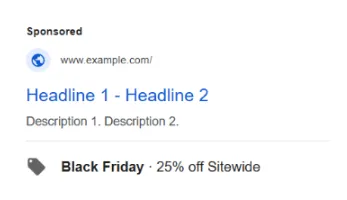
Promotion assets (aka promotion extensions) allow you to highlight special offers, discounts, or limited-time deals.
I use this feature quite often, especially with my e-commerce clients who run sales quite often, and it’s powerful!
You can include specific information like the promotion type (e.g., percentage off, dollar amount off), validity dates, and promo codes. These extensions appear below the ad description, making them impossible to miss and giving your ad an added incentive for users to click.
These extensions can help your ad stand out among competitors, especially during seasonal sales or special events. They give potential customers a clear, immediate reason to engage, such as a discount or exclusive offer.
By showcasing your promotions in the search results, you create urgency, making users more likely to click through and convert.
I have a tip for you: use time-sensitive promotions like ‘flash sales’ or ‘Black Friday discounts’ in your promotion extensions to attract quick action. Be sure the discount or offer is prominent and adds clear value to your customers.