How to Set Up AI Overview Tracking for Your Website
Google’s AI Overviews are changing how customers discover your products, and the problem is: your current analytics setup has no way of knowing when someone clicks…
Google’s AI Overviews are changing how customers discover your products, and the problem is: your current analytics setup has no way of knowing when someone clicks through from an AI Overview. That traffic shows up as “direct” or gets lumped into generic “organic search” in GA4, which means you’re potentially making marketing decisions based on incomplete data.
As a marketing manager or SEO specialist you need to know exactly where your (organic) traffic is coming from. This guide walks you through the complete technical setup for AI overview tracking using Google Tag Manager and Google Analytics 4 and shows you how to build a report with data that actually matters.
What Are AI Overviews and Why They Matter
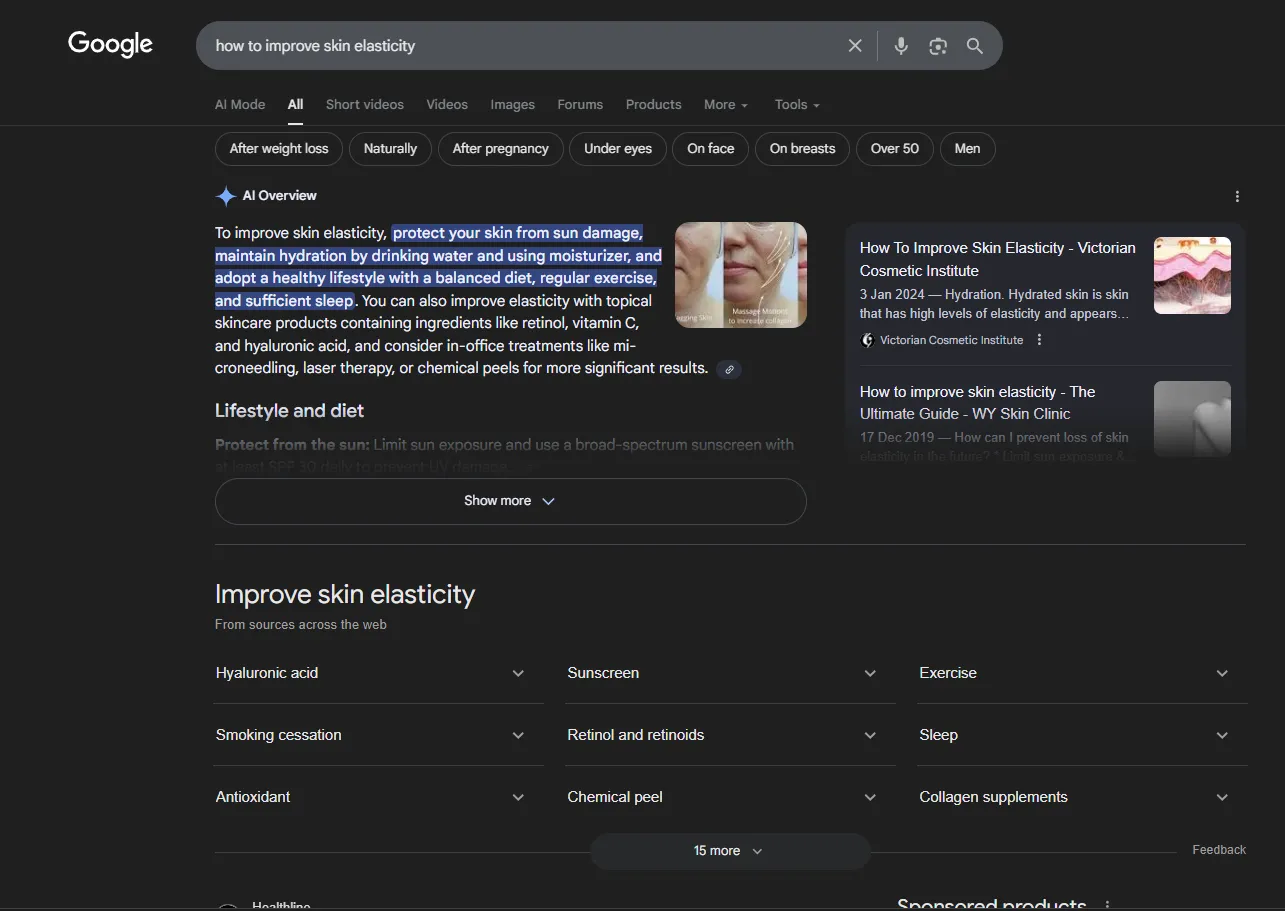
AI Overviews are Google’s AI-generated summaries that appear at the top of search results.
Unlike traditional featured snippets that pull from a single source, AI Overviews synthesize information from multiple sources and often include product recommendations, comparisons, and shopping suggestions – exactly the kind of content that matters for fashion, beauty, and lifestyle brands.
Here’s what makes them different: when someone searches for “best skincare ingredients for sensitive skin” or “how to improve skin elasticity”, they might get an AI-generated answer that mentions your solutions and answers alongside competitors. These mentions can either steal clicks from your organic listings or drive incredibly qualified traffic to your site – people who’ve already been pre-sold by Google’s AI. So yes, AI Overviews can impact your SEO results quite a bit.
The challenge? Your current analytics setup has no idea this is happening. For brands trying to accurately make data-driven decisions, this blind spot is expensive.
What You Need to Set Up AI Overview Tracking
Before diving into setup, make sure you have Google Tag Manager installed on your site and Google Analytics 4 properly configured. You’ll need edit access to both platforms. The good news: you don’t need to be technical or know how to code. The setup takes about 2-3 hours initially, then max 30 minutes weekly to monitor results.
How to Track AI Overview Clicks: Step-by-Step Setup
Understanding What We’re Tracking
When someone clicks a link from an AI Overview, their browser adds a special text fragment identifier to the URL – basically a #:~:text= marker that tells the browser what text to highlight. We’re going to capture these markers through Google Tag Manager and send that data to Google Analytics.
Before You Start: Two Key Notes
GA4 custom dimension limit:
GA4 custom dimensions are limited to 150 bytes. This means long URLs might get truncated. Even so, tracking them provides useful information about which pages receive AI Overview traffic.
Broader coverage:
The #:~:text= marker isn’t exclusive to AI Overview. It can appear in other Google features. Therefore, this implementation will capture traffic from multiple SERP sections, not only AI Overview clicks.
Step 1: Create a Custom JavaScript Variable in GTM
Open Google Tag Manager.
Go to Variables → New → Variable Type → Custom JavaScript.
Name it clearly, for example: ai_overview_click_url
Paste the following code into the editor:
function() { try { var entries = performance.getEntries(); var filteredEntries = []; for (var i = 0; i < entries.length; i++) { if (entries[i].name.indexOf("#:~:text=") !== -1) { filteredEntries.push(entries[i]); } } if (filteredEntries.length > 0) { var url = filteredEntries[0].name; var cleanUrl = url.split("#")[0].split("?")[0]; return cleanUrl; } else { return null; } } catch (error) { return null; }}
This script identifies any URL containing the #:~:text= fragment (used by Chrome and other browsers when loading AI Overview results). It then extracts and returns the clean base URL.
Step 2: Connect the Variable to Your GA4 Configuration Tag
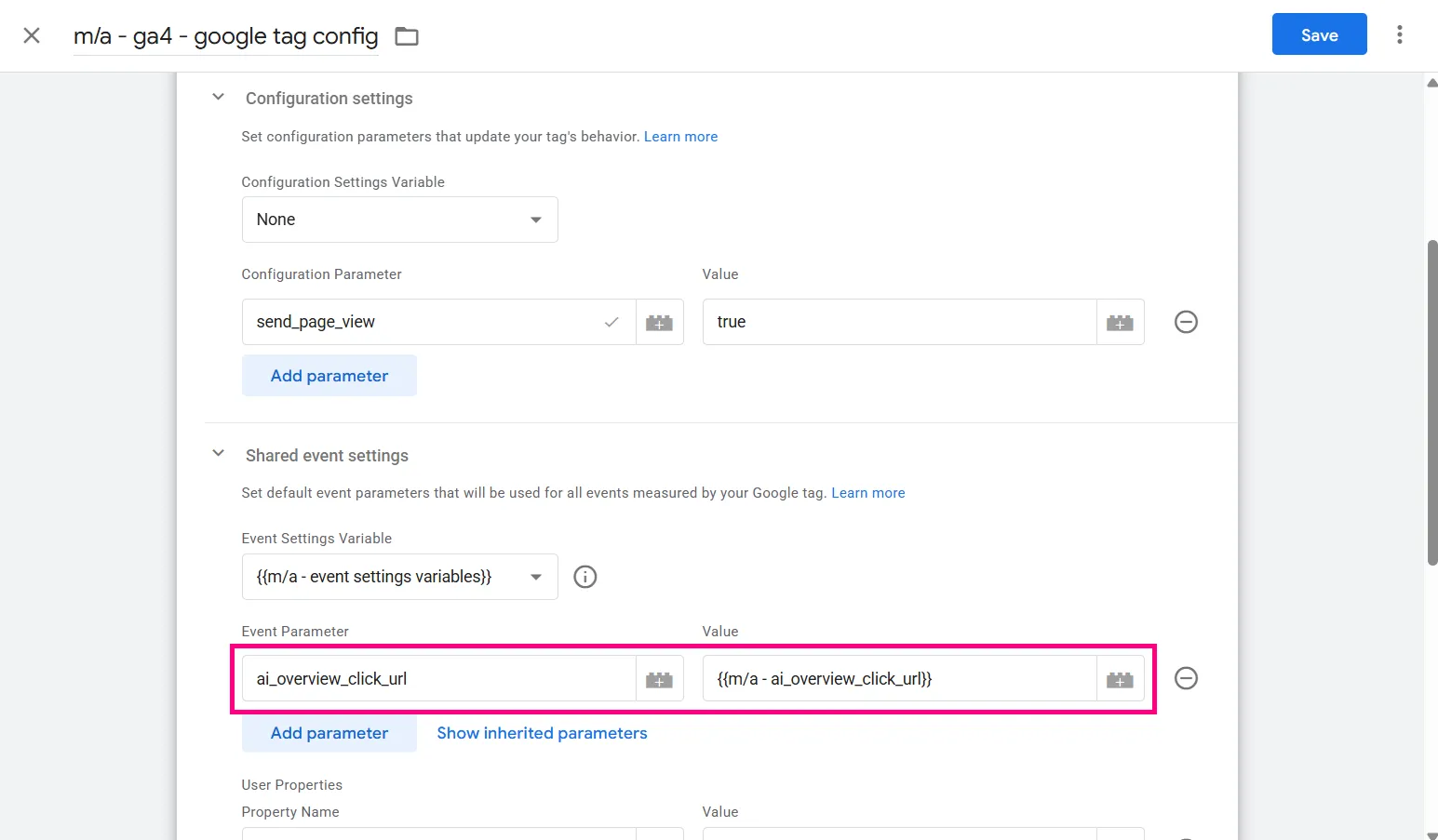
In Google Tag Manager, open your existing GA4 Configuration Tag.
Under Event Parameters, click Add Row.
Set the Parameter Name to: ai_overview_click_url
In the Value field, select the variable you just created.
Save your changes.
This ensures that every time GTM detects a URL with a text fragment, the information is passed to GA4 as an event parameter.
Step 3: Create a Custom Dimension in GA4
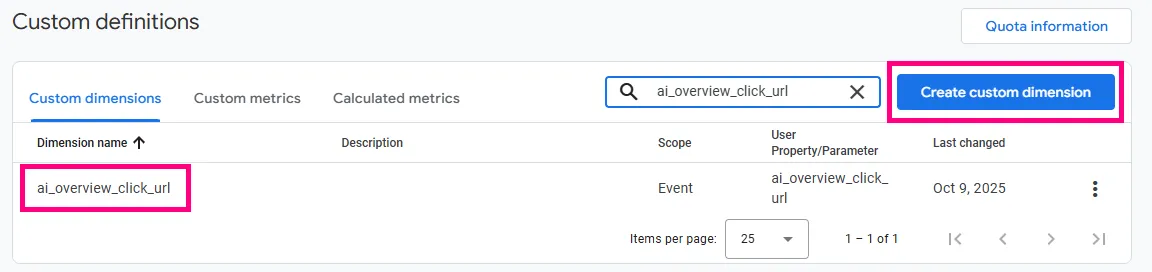
Go to Google Analytics 4 → Admin → Data Display → Custom Definitions.
Click Create Custom Dimension.
Configure as follows:
Name: ai_overview_click_url
Scope: Event
Event parameter: ai_overview_click_url
**Important:**The custom dimension name in GA4 must exactly match the event parameter name in GTM. Otherwise, the data will not transfer correctly.
**Note:**GA4 can take 24–48 hours to begin processing new custom dimensions, so don’t worry if data doesn’t appear right away.
Step 4: Publish
In Google Tag Manager, publish your changes to make them live. Once deployed, data will begin flowing into GA4, allowing you to identify sessions that originated from AI Overview using #:~:text= fragments.
This setup ensures that your analytics captures and stores these fragment-based URLs, providing clear visibility into AI Overview–driven traffic and helping assess the impact of emerging Google search formats on your site’s performance.
Set Up AI Overview Tracking Report in GA4: Step-by-Step Setup
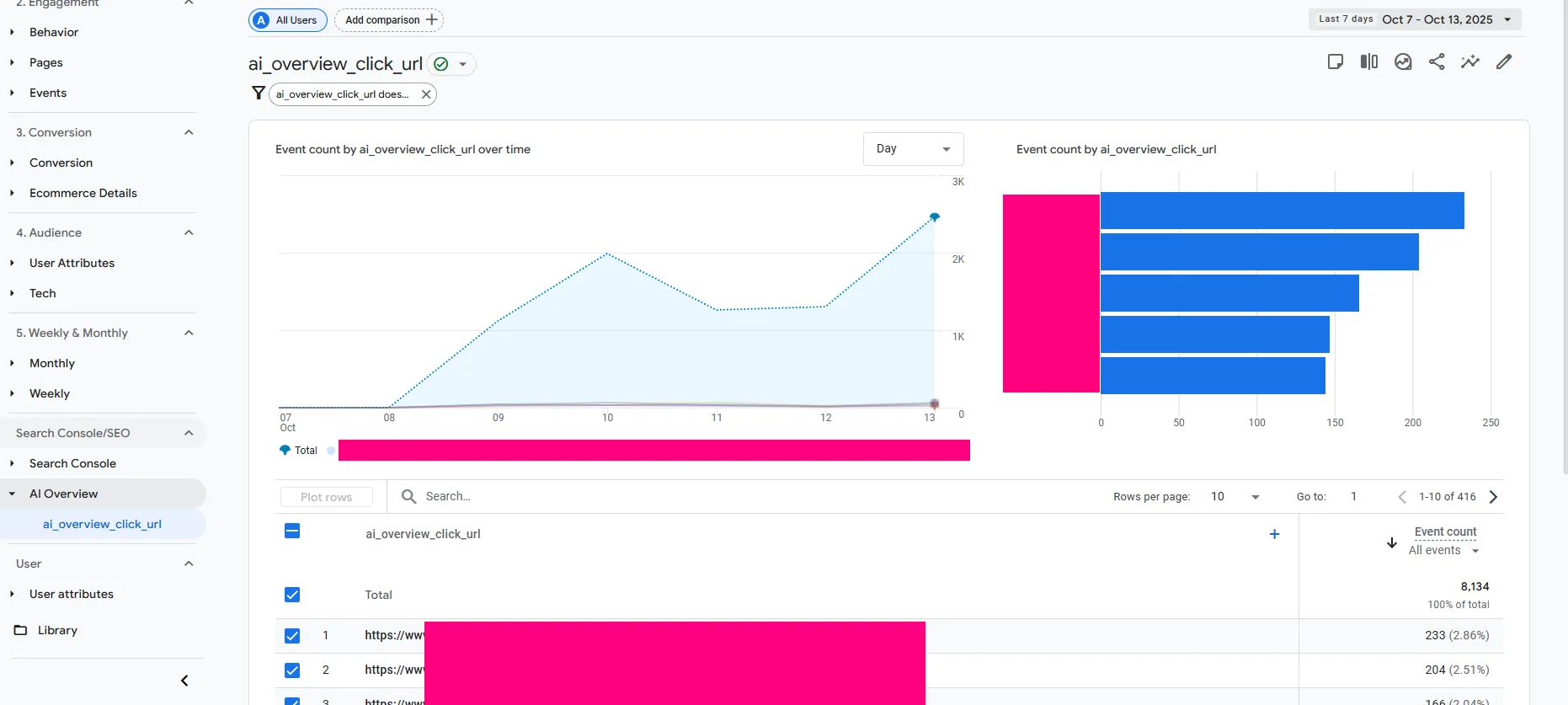
Now your data should start flowing into GA4. To avoid having to manually add the custom dimension in your existing reports, we suggest you create a custom report so that you can always consult your AI Overview data. The report we’ll set up looks like this:
As you can see, the report provides three key insights:
A line graph showing total and URL-specific event counts for users who entered via an AI Overview click.
A bar chart highlighting the top 5 URLs with the most clicks from AI Overview.
A detailed table listing all URLs reached through AI Overview clicks, along with their corresponding event counts.
In this context, event count represents the number of times a specific page was accessed through an AI Overview click.
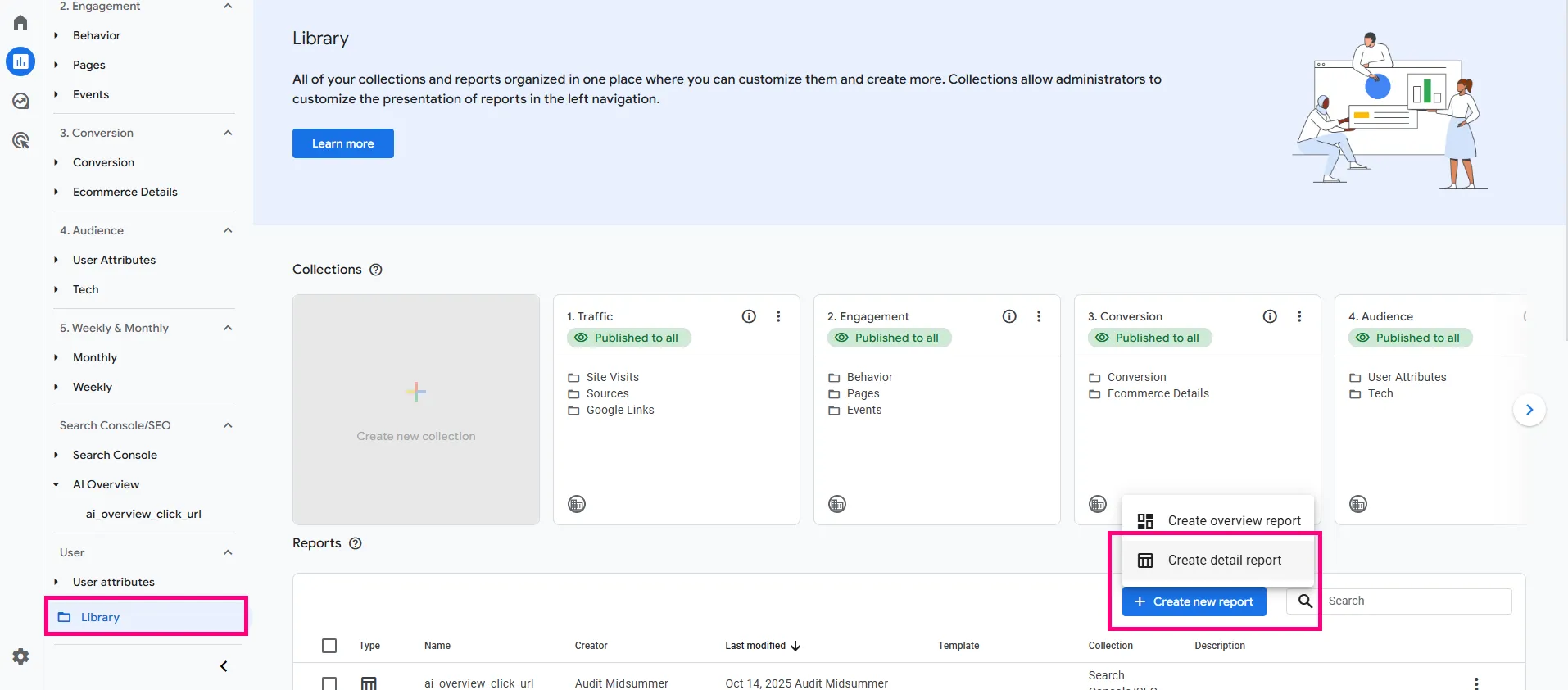
Step 1: Create a custom report in GA4 under Library
Go to Library → Create new report → Create detail report
Step 2: Build the AI Overview report
Under Dimension → add your custom dimension “ai_overview_click_url”
Under Metrics → add Event count
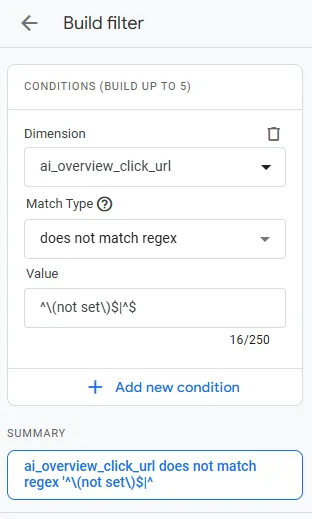
Under Filter → add dimension “ai_overview_click_url”, pick the Match Type “does not match regex”, and as a value add “^\(not set\)$|^$”. This will help you filter out empty or (not set) values.
Save as a new report, give it a name, and you’re done! You now have your own little AI Overview tracker.
Step 3: Add the report to your GA4 Navigation Menu
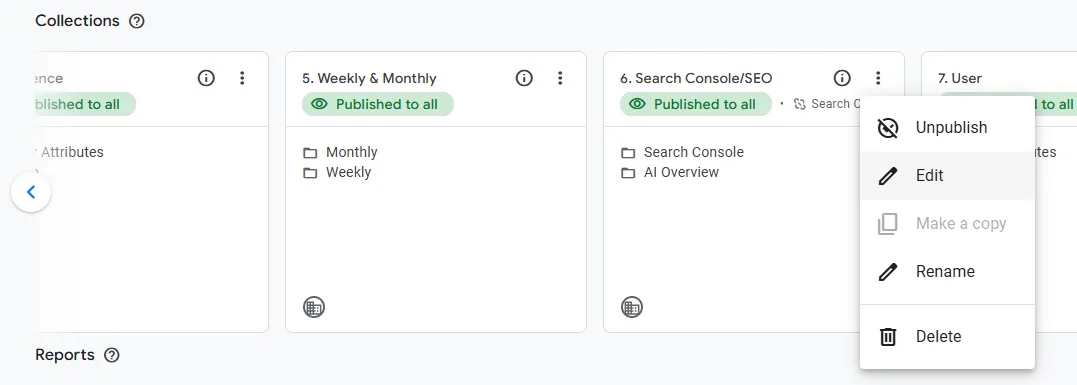
Still under the Library section, go to one of your “Collections”, these are basically the report groups you see in your GA4 Navigation Menu. Click on Edit.
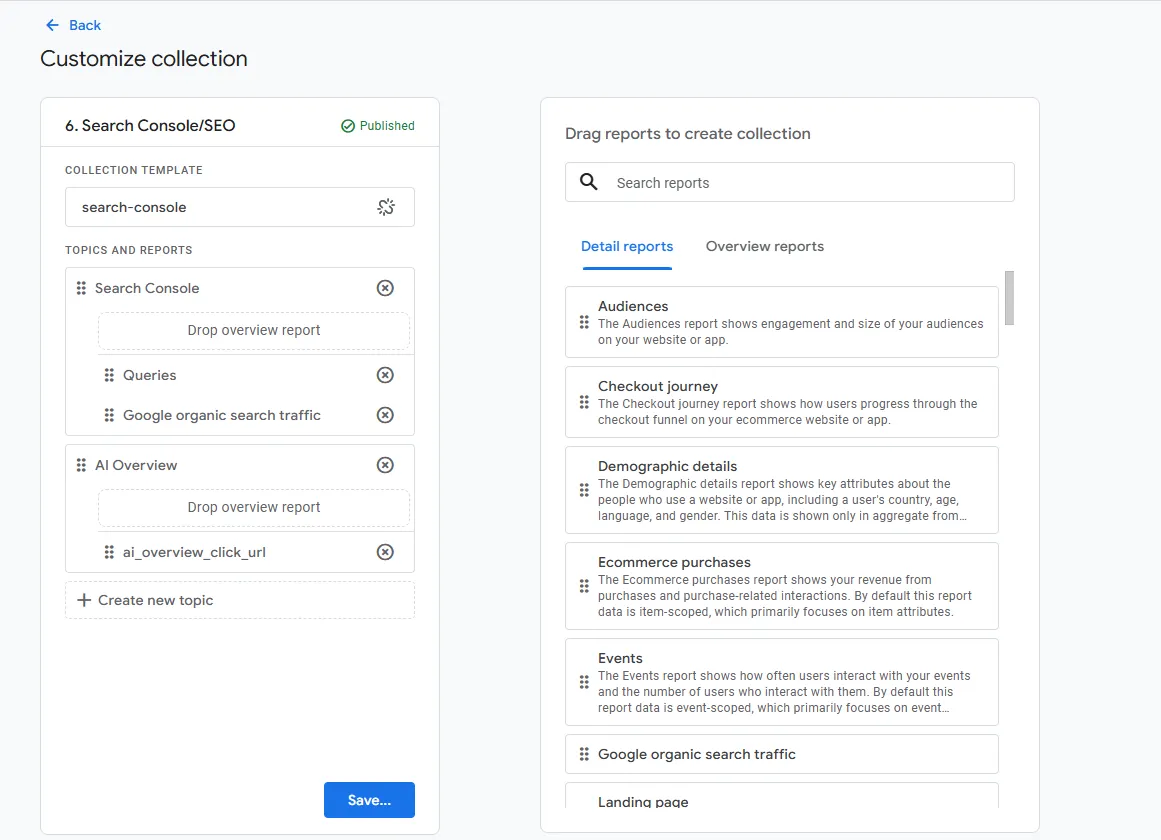
From there, create a new topic, like for example “AI Overview”, and then drag your custom report that you created under step 2 under AI Overview. Save, and done!
Easy as that!
Need help setting this up? Our amazing Web Analytics team is here to support your (custom) needs! Or, if you have any questions, feel free to reach out!